

YOUR PRODUCT. YOUR ANSWERS.
Product Videos & FAQs
Find your CHESONA product for videos, guides, and answers.
8 products found
This product help page could not be found. Browse the products below or contact support.
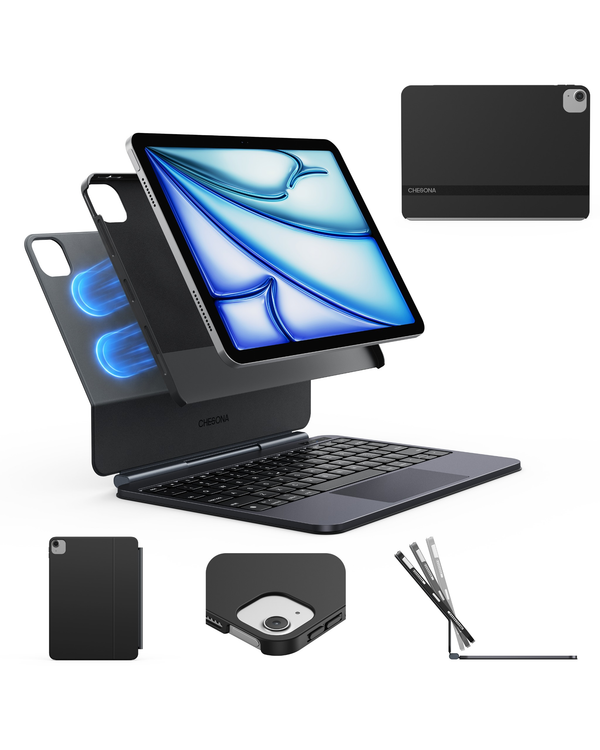
Cloud X
Detachable magnetic keyboard case
View product help ↗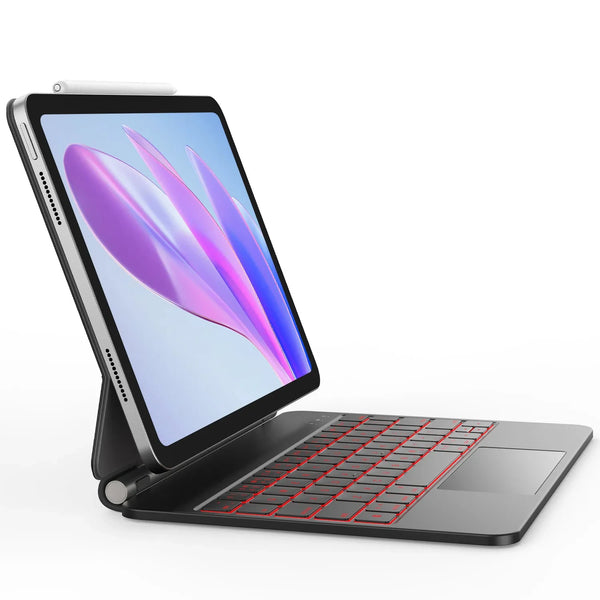
Cloud 1
Floating keyboard case
View product help ↗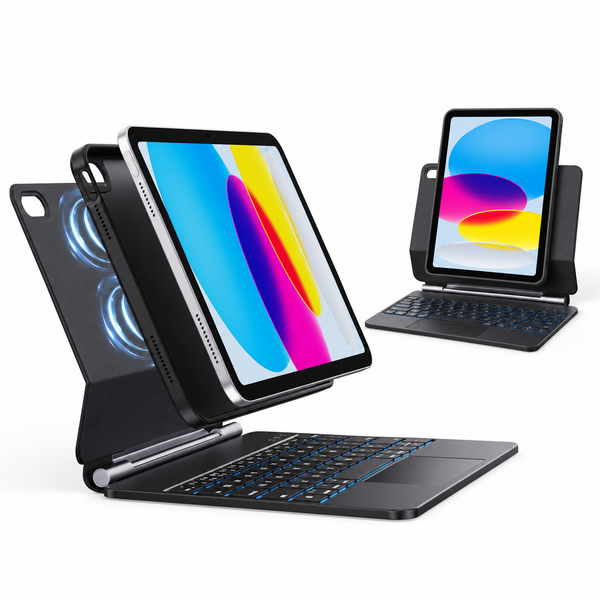
Cloud 2
Detachable keyboard case
View product help ↗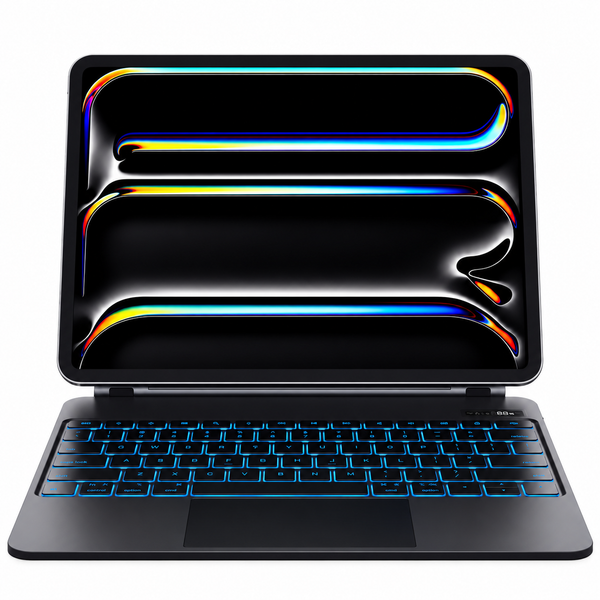
Cloud Digital
Floating keyboard with digital display
View product help ↗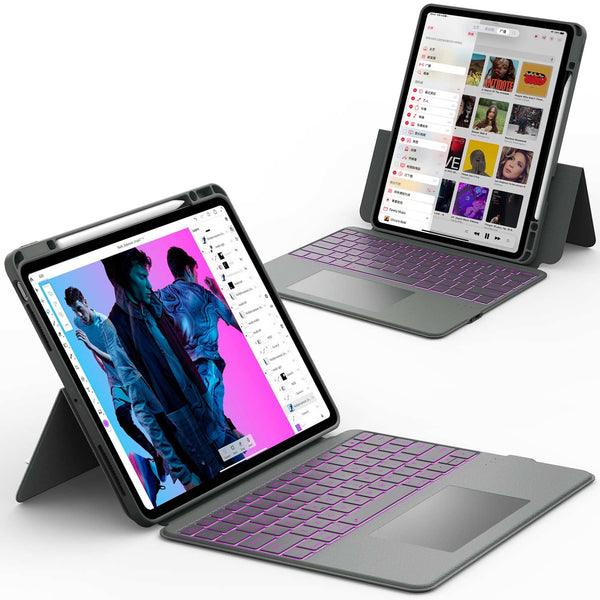
Rugged
Protective detachable keyboard case
View product help ↗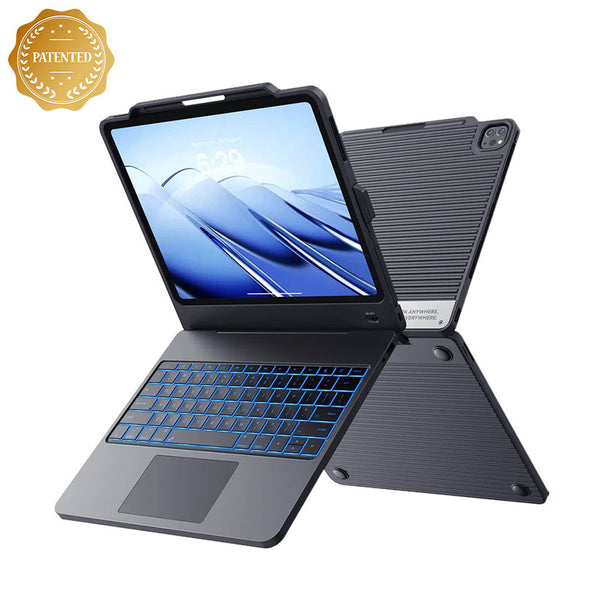
Studio Dock
Docking keyboard case
View product help ↗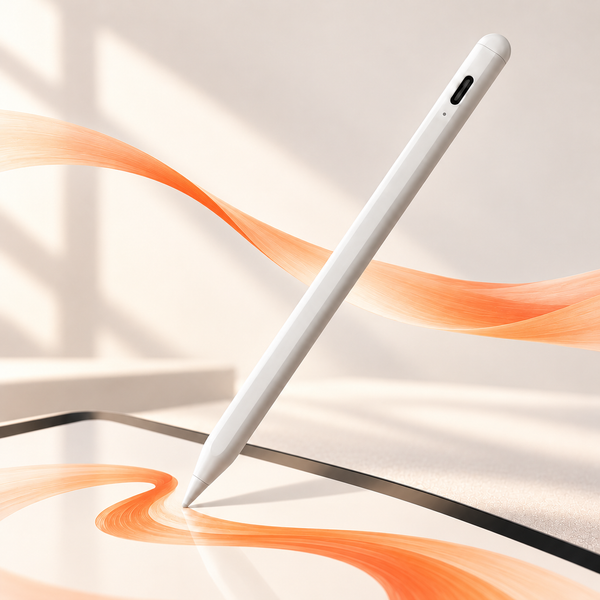
Stylus
CHESONA stylus for iPad
View product help ↗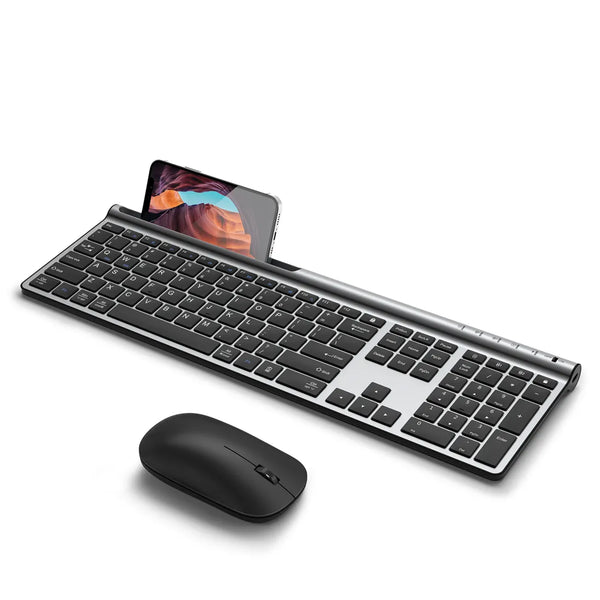
Wireless Keyboard & Mouse
Multi-device keyboard and mouse combo
View product help ↗No matching products
Try another name, model, or SKU, or ask our support team to identify your product.
Contact support ↗Not sure which product you have?
Send our team the product name, model number, or a photo by email.
Earlier user manuals
Already own an earlier CHESONA product? These existing manuals are still available. Check the product name before using a guide.
1. CHESONA Steps Touch Keyboard Case for iPad / iPad Pro / iPad Air
2. CHESONA Levitate Keyboard Case for iPad Pro / iPad Air
3. CHESONA Dock Keyboard Case for iPad Pro / iPad Air

Product videos
Magnetic hold
Detach & stay protected
Cloud X in everyday use
Frequently asked questions
How do I identify my exact iPad model?
Open Settings → General → About to find your iPad model number, or check the model number printed on the back of your iPad.
Please compare it with the compatibility list before purchasing.
Which iPad models are compatible with Cloud X?
iPad Air
11" M4 (2026): A3459 / A3460 / A3463
11" M3 (2025): A3266 / A3267 / A3270
11" M2 (2024): A2902 / A2903 / A2904
10.9" 5th Gen (2022): A2588 / A2589 / A2591
10.9" 4th Gen (2020): A2316 / A2324 / A2325 / A2072
iPad Pro
11" 4th Gen: A2759 / A2761 / A2435 / A2762
11" 3rd Gen: A2377 / A2301 / A2459 / A2460
11" 2nd Gen: A2228 / A2068 / A2231
11" 1st Gen: A1980 / A2013 / A1934 / A1979
Not compatible with iPad Pro 11" M4/M5.
Does the 680g weight include the iPad?
No. The 680g figure refers to the Cloud X keyboard case system only. The iPad is not included in this weight.
How do I connect the Cloud X keyboard to my iPad?
Press and hold the Bluetooth pairing button for 3 seconds until the indicator light flashes, then go to Settings → Bluetooth on your iPad and select “Wireless Keyboard” to connect.
What trackpad gestures does Cloud X support?
Cloud X supports standard iPadOS multi-touch gestures, including cursor control, scrolling, right-click, Home, multitasking, and switching between apps.
How do I control the keyboard backlight?
Press Fn + Cmd to turn on the backlight and cycle through 3 brightness levels. Press Fn + Option to switch between 7 backlight colors.
How long does the Cloud X battery last, and how long does it take to charge?
Up to 200 hours with the backlight off, with approximately 3 hours needed for a full charge.
What comes in the box?
Cloud X Keyboard, protective tablet case, USB-C charging cable, and user manual.
Need help with this product?
Contact our support team for product-specific setup and troubleshooting assistance.
Still need a hand?
Tell us what is happening and we will help you find the next step.


Frequently asked questions
How do I identify my exact iPad model?
Open Settings → General → About to find your iPad model number, or check the model number printed on the back of your iPad.
Please compare it with the compatibility list before purchasing.
Which iPad models does Cloud 1 support?
iPad
- 11" (A16, 2025): A3354 / A3355 / A3356
- 10.9" 10th Gen (2022): A2696 / A2757 / A2777
iPad Pro 11"
- 4th Gen (2022): A2759 / A2435 / A2761 / A2762
- 3rd Gen (2021): A2377 / A2459 / A2301 / A2460
- 2nd Gen (2020): A2228 / A2068 / A2230 / A2231
- 1st Gen (2018): A1980 / A2013 / A1934 / A1979
iPad Pro 12.9"
- 6th Gen (2022): A2436 / A2764 / A2437 / A2766
- 5th Gen (2021): A2378 / A2461 / A2379 / A2462
- 4th Gen (2020): A2229 / A2069 / A2232 / A2233
- 3rd Gen (2018): A1876 / A2014 / A1895 / A1983
Please note: Not compatible with iPad Pro 11" (M4/M5).
How do I connect the Cloud 1 keyboard to my iPad?
Turn on the keyboard, then press and hold the Bluetooth pairing button for 3 seconds until the indicator light flashes.
Go to Settings → Bluetooth on your iPad and select “Wireless Keyboard” to connect.
Does Cloud 1 include a separate protective case?
No. Cloud 1 uses a magnetic floating design that attaches your iPad directly to the keyboard and does not include a separate protective case.
Can I attach my iPad to Cloud 1 in portrait orientation?
No. Cloud 1 is designed for landscape use, with its magnetic structure aligned to the back of the compatible iPad. It does not support attaching the iPad vertically in portrait orientation.
Can I turn off or adjust the trackpad?
Cloud 1 does not have a dedicated shortcut to turn off the trackpad. To adjust the tracking speed, go to Settings → General → Trackpad on your iPad.
How do I control the keyboard backlight?
Press Fn + Option to switch between 7 backlight colors. Press Fn + Command to adjust the backlight brightness between low, medium, and high, or turn the backlight off.
If I charge the keyboard, will it charge my iPad at the same time?
No. The charging port on Cloud 1 is for charging the keyboard only and does not support pass-through charging for your iPad. Your iPad needs to be charged separately.
How do I identify my exact iPad model?
Open Settings → General → About to find your iPad model number, or check the model number printed on the back of your iPad.
Please compare it with the compatibility list before purchasing.
Which iPad models does Cloud 1 support?
iPad
- 11" (A16, 2025): A3354 / A3355 / A3356
- 10.9" 10th Gen (2022): A2696 / A2757 / A2777
iPad Pro 11"
- 4th Gen (2022): A2759 / A2435 / A2761 / A2762
- 3rd Gen (2021): A2377 / A2459 / A2301 / A2460
- 2nd Gen (2020): A2228 / A2068 / A2230 / A2231
- 1st Gen (2018): A1980 / A2013 / A1934 / A1979
iPad Pro 12.9"
- 6th Gen (2022): A2436 / A2764 / A2437 / A2766
- 5th Gen (2021): A2378 / A2461 / A2379 / A2462
- 4th Gen (2020): A2229 / A2069 / A2232 / A2233
- 3rd Gen (2018): A1876 / A2014 / A1895 / A1983
Please note: Not compatible with iPad Pro 11" (M4/M5).
How do I connect the Cloud 1 keyboard to my iPad?
Turn on the keyboard, then press and hold the Bluetooth pairing button for 3 seconds until the indicator light flashes.
Go to Settings → Bluetooth on your iPad and select “Wireless Keyboard” to connect.
Does Cloud 1 include a separate protective case?
No. Cloud 1 uses a magnetic floating design that attaches your iPad directly to the keyboard and does not include a separate protective case.
Can I attach my iPad to Cloud 1 in portrait orientation?
No. Cloud 1 is designed for landscape use, with its magnetic structure aligned to the back of the compatible iPad. It does not support attaching the iPad vertically in portrait orientation.
Can I turn off or adjust the trackpad?
Cloud 1 does not have a dedicated shortcut to turn off the trackpad. To adjust the tracking speed, go to Settings → General → Trackpad on your iPad.
How do I control the keyboard backlight?
Press Fn + Option to switch between 7 backlight colors. Press Fn + Command to adjust the backlight brightness between low, medium, and high, or turn the backlight off.
If I charge the keyboard, will it charge my iPad at the same time?
No. The charging port on Cloud 1 is for charging the keyboard only and does not support pass-through charging for your iPad. Your iPad needs to be charged separately.
How do I identify my exact iPad model?
Open Settings → General → About to find your iPad model number, or check the model number printed on the back of your iPad.
Please compare it with the compatibility list before purchasing.
Which iPad models does Cloud 1 support?
iPad
- 11" (A16, 2025): A3354 / A3355 / A3356
- 10.9" 10th Gen (2022): A2696 / A2757 / A2777
iPad Pro 11"
- 4th Gen (2022): A2759 / A2435 / A2761 / A2762
- 3rd Gen (2021): A2377 / A2459 / A2301 / A2460
- 2nd Gen (2020): A2228 / A2068 / A2230 / A2231
- 1st Gen (2018): A1980 / A2013 / A1934 / A1979
iPad Pro 12.9"
- 6th Gen (2022): A2436 / A2764 / A2437 / A2766
- 5th Gen (2021): A2378 / A2461 / A2379 / A2462
- 4th Gen (2020): A2229 / A2069 / A2232 / A2233
- 3rd Gen (2018): A1876 / A2014 / A1895 / A1983
Please note: Not compatible with iPad Pro 11" (M4/M5).
Why doesn't Cloud 1 magnetically attach even if my iPad is the same size?
Screen size alone does not determine compatibility. Different iPad models may have different dimensions, magnet layouts, and camera designs. Please make sure your exact iPad model is listed as compatible before purchasing.
Please note: iPad Pro 11" (M4/M5) is not compatible with Cloud 1.
How do I connect the Cloud 1 keyboard to my iPad?
Turn on the keyboard, then press and hold the Bluetooth pairing button for 3 seconds until the indicator light flashes.
Go to Settings → Bluetooth on your iPad and select “Wireless Keyboard” to connect.
Does Cloud 1 include a separate protective case?
No. Cloud 1 uses a magnetic floating design that attaches your iPad directly to the keyboard and does not include a separate protective case.
Can I attach my iPad to Cloud 1 in portrait orientation?
No. Cloud 1 is designed for landscape use, with its magnetic structure aligned to the back of compatible iPad models. It does not support attaching the iPad vertically in portrait orientation.
Can I turn off or adjust the trackpad?
Cloud 1 does not have a dedicated shortcut to turn off the trackpad. To adjust the tracking speed, go to Settings → General → Trackpad on your iPad.
How do I control the keyboard backlight?
Press Fn + Option to switch between 7 backlight colors. Press Fn + Command to adjust the backlight brightness between low, medium, and high, or turn the backlight off.
Can Cloud 1 charge my iPad?
No. The charging port on Cloud 1 is for charging the keyboard only and does not support pass-through charging for your iPad. Your iPad needs to be charged separately.
How do I identify my exact iPad model?
Open Settings → General → About to find your iPad model number, or check the model number printed on the back of your iPad.
Please compare it with the compatibility list before purchasing.
Which iPad models does Cloud 1 support?
iPad
- 11" (A16, 2025): A3354 / A3355 / A3356
- 10.9" 10th Gen (2022): A2696 / A2757 / A2777
iPad Pro 11"
- 4th Gen (2022): A2759 / A2435 / A2761 / A2762
- 3rd Gen (2021): A2377 / A2459 / A2301 / A2460
- 2nd Gen (2020): A2228 / A2068 / A2230 / A2231
- 1st Gen (2018): A1980 / A2013 / A1934 / A1979
iPad Pro 12.9"
- 6th Gen (2022): A2436 / A2764 / A2437 / A2766
- 5th Gen (2021): A2378 / A2461 / A2379 / A2462
- 4th Gen (2020): A2229 / A2069 / A2232 / A2233
- 3rd Gen (2018): A1876 / A2014 / A1895 / A1983
Please note: Not compatible with iPad Pro 11" (M4/M5).
Why doesn't Cloud 1 magnetically attach even if my iPad is the same size?
Screen size alone does not determine compatibility. Different iPad models may have different dimensions, magnet layouts, and camera designs. Please make sure your exact iPad model is listed as compatible before purchasing.
Please note: iPad Pro 11" (M4/M5) is not compatible with Cloud 1.
How do I connect the Cloud 1 keyboard to my iPad?
Turn on the keyboard, then press and hold the Bluetooth pairing button for 3 seconds until the indicator light flashes.
Go to Settings → Bluetooth on your iPad and select “Wireless Keyboard” to connect.
Does Cloud 1 include a separate protective case?
No. Cloud 1 uses a magnetic floating design that attaches your iPad directly to the keyboard and does not include a separate protective case.
Can I attach my iPad to Cloud 1 in portrait orientation?
No. Cloud 1 is designed for landscape use, with its magnetic structure aligned to the back of compatible iPad models. It does not support attaching the iPad vertically in portrait orientation.
Can I turn off or adjust the trackpad?
Cloud 1 does not have a dedicated shortcut to turn off the trackpad. To adjust the tracking speed, go to Settings → General → Trackpad on your iPad.
How do I control the keyboard backlight?
Press Fn + Option to switch between 7 backlight colors. Press Fn + Command to adjust the backlight brightness between low, medium, and high, or turn the backlight off.
Can Cloud 1 charge my iPad?
No. The charging port on Cloud 1 is for charging the keyboard only and does not support pass-through charging for your iPad. Your iPad needs to be charged separately.
Need help with this product?
Contact our support team for product-specific setup and troubleshooting assistance.
Still need a hand?
Tell us what is happening and we will help you find the next step.

Frequently asked questions
How do I identify my exact iPad model?
Open Settings → General → About to find your iPad model number, or check the model number printed on the back of your iPad.
Please compare it with the compatibility list before purchasing.
Which iPad models does Cloud 2 support?
iPad
- 11" (A16, 2025): A3354 / A3355 / A3356
- 10.9" 10th Gen (2022): A2696 / A2757 / A2777 / A3162
Please make sure your exact iPad model is listed above before purchasing.
How do I connect the Cloud 2 keyboard to my iPad?
Turn on the keyboard, then press and hold the Bluetooth pairing button for 3 seconds until the indicator light flashes. Go to Settings → Bluetooth on your iPad and select “Wireless Keyboard” to connect.
Does Cloud 2 include a separate protective case?
Yes. Cloud 2 includes an independent protective case that stays on your iPad when detached from the keyboard, making it easy to switch to tablet use while keeping your iPad protected.
Can I use Cloud 2 in portrait orientation?
Yes. Cloud 2 supports both landscape and portrait orientations, so you can switch between them depending on how you use your iPad.
How do I control the keyboard backlight?
Press Fn + Option to switch between 7 backlight colors. Press Fn + Command to adjust the backlight brightness between low, medium, and high, or turn the backlight off.
What comes in the box?
Cloud 2 comes with a keyboard case, a detachable protective case, a USB-C charging cable, and a user manual.
Need help with this product?
Contact our support team for product-specific setup and troubleshooting assistance.
Still need a hand?
Tell us what is happening and we will help you find the next step.


Product Videos & FAQs
Cloud Digital
Floating keyboard with digital display
View product page ↗ Contact support ↗Frequently asked questions
How do I identify my exact device model?
For iPad: Open Settings → General → About to find your model number, or check the model number printed on the back of your iPad.
For Samsung Galaxy Tab: Open Settings → About tablet to find your model number.
Please compare it with the compatibility list before purchasing.
Which devices does Cloud Digital support?
iPad Pro 11"
- M5 (2025): A3357 / A3358 / A3359
- M4 (2024): A2837 / A3006 / A2836
iPad Pro 13"
- M5 (2025): A3360 / A3361 / A3362
- M4 (2024): A2925 / A2926 / A3007
Samsung Galaxy Tab
- Galaxy Tab S9 11": SM-X710 / SM-X716B / SM-X718U
- Galaxy Tab S9 FE 10.9": SM-X510 / SM-X516B / SM-X518U
- Galaxy Tab S8 11": SM-X700 / SM-X706
- Galaxy Tab S7 11": SM-T870 / SM-T875 / SM-T876
Please select the version that matches your exact device model before purchasing.
What information does the digital display show?
The built-in digital display shows the keyboard’s battery level, charging status, Caps Lock status, and wireless connection status, making key information easy to check at a glance.
How do I connect the Cloud Digital keyboard to my device?
Turn on the keyboard, then press and hold the Bluetooth pairing button for 3 seconds until the indicator light flashes. Open the Bluetooth settings on your device and select “Wireless Keyboard” to connect.
Can I attach my device in portrait orientation?
No. Cloud Digital is designed for landscape use and does not support attaching the device vertically in portrait orientation.
Can I turn off or adjust the trackpad?
Cloud Digital does not have a dedicated shortcut to turn off the trackpad. On iPad, you can adjust the tracking speed in Settings → General → Trackpad.
How do I control the keyboard backlight?
Press Fn + Option to switch between 7 backlight colors. Press Fn + Command to cycle through three brightness levels and the breathe-like mode.
Can Cloud Digital charge my iPad or tablet?
No. The USB-C charging port is for charging the keyboard only and does not support pass-through charging for your iPad or tablet. Your device needs to be charged separately.
Need help with this product?
Contact our support team for product-specific setup and troubleshooting assistance.
Still need a hand?
Tell us what is happening and we will help you find the next step.


Product Videos & FAQs
Rugged
Protective detachable keyboard case
View product page ↗ Contact support ↗Frequently asked questions
How do I identify my exact iPad model?
Open Settings → General → About to find your iPad model number, or check the model number printed on the back of your iPad.
Please compare it with the compatibility list before purchasing.
Which iPad models does Rugged Series support? iPad
iPad
11th Gen (A16, 2025): A3354 / A3355 / A3356
10th Gen 10.9" (2022): A2696 / A2777 / A2757
9th Gen 10.2": A2602 / A2603 / A2604 / A2605
8th Gen 10.2": A2270 / A2428 / A2429 / A2430
7th Gen 10.2": A2197 / A2198 / A2200
iPad Air
13" M4 (2026): A3461 / A3462 / A3464
13" M3 (2025): A3268 / A3269 / A3271
13" M2 (2024): A2898 / A2899 / A2900
Air 3rd Gen: A2152 / A2123 / A2153 / A2154
iPad Pro 10.5"
A1701 / A1709 / A1852
iPad Pro 11"
M5 (2025): A3357 / A3358 / A3359
M4 (2024): A2836 / A2837 / A3006
iPad Pro 12.9"
6th Gen (2022): A2436 / A2764 / A2437 / A2766
5th Gen (2021): A2378 / A2461 / A2379 / A2462
4th Gen (2020): A2229 / A2069 / A2232 / A2233
3rd Gen (2018): A1876 / A2014 / A1895 / A1983
iPad Pro 13"
M5 (2025): A3360 / A3361 / A3362
M4 (2024): A2925 / A2926 / A3007
Please select the Rugged version that matches your exact iPad model before purchasing.
Can I use the protective case without the keyboard?
Yes. The protective case can be detached from the keyboard, so you can use your iPad on its own while keeping it protected.
Can I turn the trackpad on or off?
Yes. Press Fn + Space to turn the trackpad on or off.
How do I control the keyboard backlight?
Use the Shift key combinations shown on the keyboard to adjust between three brightness levels or switch between seven backlight colors.
How long does the keyboard battery last?
The keyboard provides over 50 hours of use on a full charge and takes approximately 2–3 hours to fully recharge.
If left inactive for about 10 minutes, the keyboard will automatically enter sleep mode. Press any key to wake it and reconnect.
What comes in the box?
Rugged includes a backstand keyboard, magnetic protective case, USB-C charging cable, and user manual. Package contents may vary by selected model, and some versions include additional camera lens protectors to fit different compatible iPad camera layouts.
Need help with this product?
Contact our support team for product-specific setup and troubleshooting assistance.
Still need a hand?
Tell us what is happening and we will help you find the next step.

Need help with this product?
Contact our support team for product-specific setup and troubleshooting assistance.
Still need a hand?
Tell us what is happening and we will help you find the next step.

Frequently asked questions
Is this stylus compatible with my iPad?
Please refer to the compatibility guide shown in the product images and features, and confirm your iPad model before ordering.
Can I rest my palm on the screen while writing?
Yes. Palm rejection lets you rest your hand naturally on the screen while taking notes, drawing, or annotating documents.
Does it support tilt sensitivity?
Yes. The stylus supports tilt sensitivity, allowing your strokes to respond naturally as you change the angle of the pen in supported apps.
How long does the battery last, and how fast does it charge?
A full charge provides approximately 10–12 hours of use. USB-C charging takes about 40 minutes for a full charge.
Does the magnetic attachment charge the stylus?
No. The magnetic attachment is for convenient storage on compatible iPads. The stylus charges via USB-C.
Do I need to pair the stylus via Bluetooth?
No Bluetooth pairing is required. Simply turn on the stylus and start using it with a compatible iPad.
Can I replace the pen tip?
Yes. The stylus has a replaceable 1.7 mm fine tip and comes with 3 replacement tips for longer-lasting use.
Need help with this product?
Contact our support team for product-specific setup and troubleshooting assistance.
Still need a hand?
Tell us what is happening and we will help you find the next step.

Product Videos & FAQs
Wireless Keyboard & Mouse
Multi-device keyboard and mouse combo
View product page ↗ Contact support ↗Need help with this product?
Contact our support team for product-specific setup and troubleshooting assistance.
Still need a hand?
Tell us what is happening and we will help you find the next step.
