


Microsoft Office for iPad has become a reliable tool for students, professionals, teachers, and anyone who works on the go.
The Office apps on iPad are fast, easy to use, and packed with features that make document editing and collaboration simple.
Whether you want to write a paper in Word, update a budget in Excel, or create a presentation in PowerPoint, the iPad can handle most tasks comfortably.
This guide covers how Microsoft Office works on iPad, the features available, key limitations to know, and how to set up your device for smooth productivity.
Quick Takeaways:
- Microsoft Office works smoothly on iPad, including Word, Excel, PowerPoint, OneNote, and Outlook.
- You can edit documents, spreadsheets, and presentations with ease, especially with a keyboard case.
- Many basic features are free, but advanced tools require a Microsoft 365 subscription.
- iPad Office apps support cloud sync, collaboration, track changes, and Apple Pencil.
- For the best experience, pair your iPad with a keyboard case or Bluetooth keyboard.
iPad Keyboard Cases You May Want to Shop
Explore More

What Microsoft Office for iPad Includes
Microsoft Office for iPad is a complete suite of apps that mirror the desktop experience but are optimized for touch and mobile workflows.
The apps include:
- Microsoft Word
- Microsoft Excel
- Microsoft PowerPoint
- Microsoft OneNote
- Microsoft Outlook
- Microsoft Teams
- Microsoft Office (all-in-one app for basic use)
Each app can be downloaded from the App Store individually, or you can install the combined Office app for lightweight tasks.
Word, Excel, PowerPoint, and OneNote:
Here is how each one functions on the iPad.
Word for iPad
Word supports professional formatting, commenting, track changes, page layout tools, and the ability to work with large documents. It is great for students and office workers.
Excel for iPad
Excel works well with spreadsheets, formulas, charts, and tables. It includes many desktop features, although the most advanced tools require a subscription.
PowerPoint for iPad
You can create and edit slides, use templates, insert images, and present using an external screen. Touch gestures make it easy to reorder slides.
OneNote for iPad
OneNote shines on the iPad because it supports handwriting, typing, photos, checklists, and organized notebooks.
👉 Also Read: How to Use Excel on iPad (2025 Guide for Beginners)
Free Features vs Microsoft 365 Subscription
Microsoft Office offers a mix of free and premium features.
Free Features
- Editing basic documents
- Reading files
- Simple formatting
- Viewing spreadsheets
- Limited collaboration
- Cloud sync
Requires Microsoft 365 Subscription
- Track Changes in full mode
- Advanced Excel formulas
- PivotTables
- SmartArt tools
- PowerPoint Designer
- Premium templates
- Full cloud collaboration
-
Advanced PDF export
If you plan to use Office regularly for work or school, a Microsoft 365 subscription is worth considering.
How to Install Microsoft Office on iPad

Setting it up takes only a few steps.
Step 1. Download the Apps
Go to the App Store and install:
- Word
- Excel
- PowerPoint
- OneNote
- Outlook
or install the Microsoft 365 app for a combined interface.
Step 2. Sign In Using Your Account
You can sign in with:
- A free Microsoft account
- A school account
- A work account
- A Microsoft 365 subscription
Step 3. Connect Your Cloud Storage
Office supports:
- OneDrive
- Dropbox
- Google Drive
- iCloud Drive
This makes it easy to work across your iPad, Mac, and phone.
👉 Also Read: What is the Best iPad Planner App for Students?
Microsoft Word on iPad: Features and Best Uses
Microsoft Word on iPad is powerful enough to handle nearly any writing task.
Document Formatting and Editing
Word supports:
- Font changes
- Spacing and indentation
- Headers and footers
- Page breaks
- Footnotes
- Lists
-
Tables
The interface is clean, and the tools are easy to reach with touch.
Track Changes and Comments
Track Changes works well when reviewing essays, contracts, or team documents. Comments sync with collaborators instantly.
Using Word for School and Work
Word for iPad is great for:
- Essays
- Reports
- Business documents
- Creative writing
- Meeting notes
Typing is faster with an external keyboard, especially during long writing sessions.
👉 Also Read: How to Choose the Best iPads for College Students
Microsoft PowerPoint on iPad: Creating and Presenting Slides

PowerPoint on iPad is useful for teachers, students, and professionals.
Slide Editing and Design Tools
You can:
- Change themes
- Edit backgrounds
- Insert shapes
- Add icons
- Format text
- Insert images
The app includes many built-in templates.
Presenting on an External Display
Connect your iPad to a display using AirPlay or USB-C. PowerPoint gives you access to:
- Presenter view
- Notes
- Slide previews
- On-screen controls
Using Apple Pencil With PowerPoint
Apple Pencil lets you:
- Draw
- Highlight points
- Write annotations
- Mark up slides during a lesson
👉 Also Read: Best iPad for Note Taking: Pro vs Air
OneNote on iPad: The Ultimate Digital Notebook
OneNote becomes even more powerful on an iPad because of:
-
Apple Pencil
- Touch navigation
- Infinite digital pages
- Audio recordings
- Organized notebooks
It is especially useful for students, teachers, and creative workers.
Using Microsoft Office with iPad Multitasking Tools
The iPad has several multitasking features that make Office easier to use.
Split View
Place two apps side by side, such as:
- Word + Safari
- Excel + OneNote
- PowerPoint + Files
Slide Over
Keep a smaller app floating on the screen.
Stage Manager
Stage Manager allows you to open multiple apps at once with overlapping windows.
This is helpful for professional workflows.
👉 Also Read: The Best iPad for Business: Pro, Air, or Mini in 2025?
Limitations of Microsoft Office for iPad
The iPad version is strong but not perfect.
Missing Desktop Features
Some features are not available yet:
- VBA macros
- Power Query
- Full PowerPoint animations
- Large data tools
- Deep file system integration
Handling Large Files
Excel or PowerPoint files over 100MB may open slowly. This depends on your iPad model.
Offline Editing Issues
You can work offline, but:
- Autosave pauses
- Collaboration stops
- Syncing restarts only when WiFi returns
Best Accessories for Microsoft Office on iPad
Accessories can turn your iPad into a proper workstation.
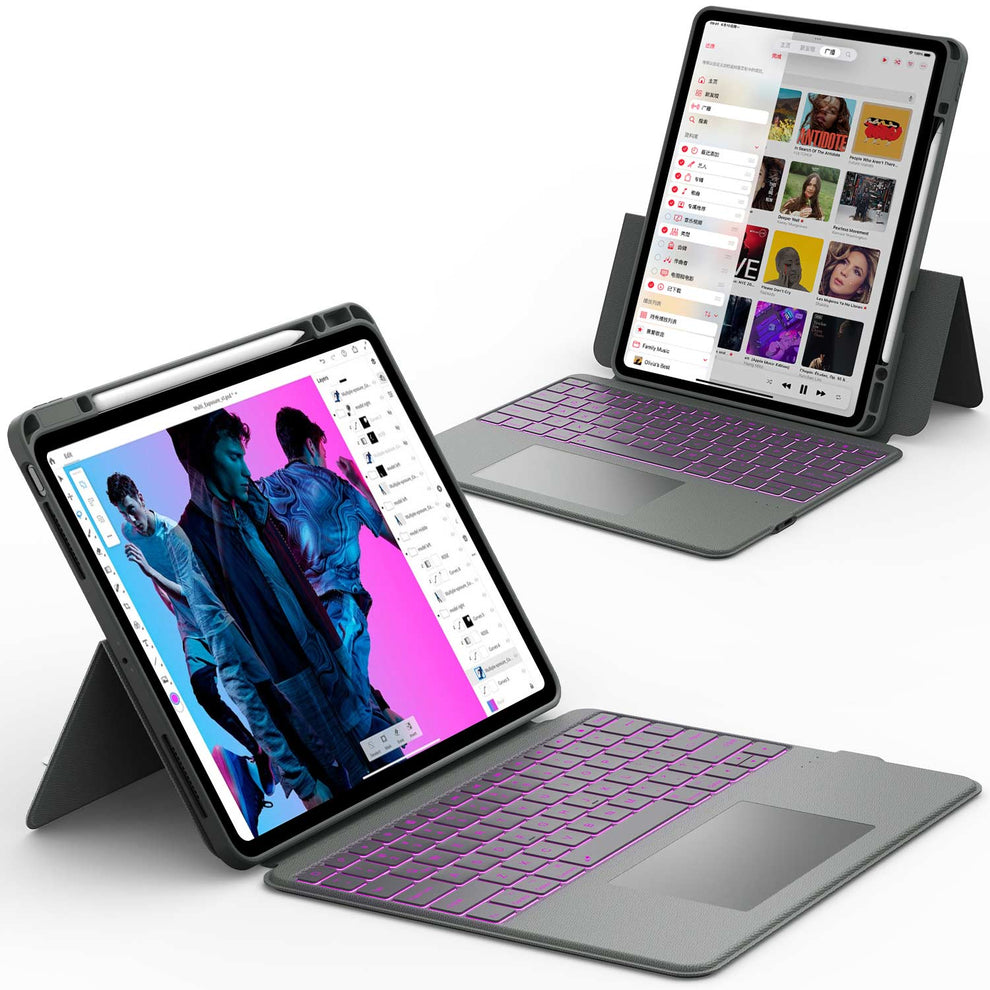
Keyboard Case: The Most Important Accessory
Typing on a screen is fine for short tasks, but not ideal for long documents.
A keyboard case gives you:
- Better typing speed
- Keyboard shortcuts
- Laptop-style comfort
- Stable stand angles
- Faster navigation
Recommended: Chesona Keyboard Cases for iPad Pro, iPad Air, and iPad series. They offer a comfortable typing experience, trackpad support, and sturdy hinges.
Bluetooth Keyboard and Mouse
If you prefer working at a desk, a Bluetooth keyboard and mouse combo gives you flexibility.
It works with:
- Word
- Excel
- PowerPoint
- Outlook
Tablet Stand or Desk Mount
A stand improves posture, especially during long writing or presentation creation sessions.
Can Microsoft Office on iPad Replace a Laptop
This depends on your needs.
When the iPad Is Enough
Microsoft Office for iPad covers:
- School assignments
- Essay writing
- Team documents
- Simple spreadsheets
- Presentations
- Meeting notes
- Daily office tasks
Students and everyday workers can comfortably use an iPad as a main device.
When You May Still Need a Laptop
You may need a laptop if you work with:
- Large spreadsheets
- Excel macros
- Advanced PowerPoint features
- Desktop add-ins
- Very large file sets
Power users should keep a laptop for heavy workflows.
Conclusion
Microsoft Office for iPad has grown into a powerful tool for everyday productivity. Word, Excel, PowerPoint, and OneNote work smoothly and support all essential features you need for school, work, and personal tasks.
The touch interface, Apple Pencil support, and multitasking features make the iPad a flexible device for writing, presenting, and organizing information.
While some advanced desktop features are missing, most users will find that the iPad can handle their workload with ease.
By adding a keyboard case or Bluetooth keyboard, you can turn your iPad into a familiar, comfortable workstation.
If you want to improve your typing and workflow with Office apps, explore these helpful accessories:
- 👉 Bluetooth Keyboard and Mouse
- 👉 iPad Series
- 👉 iPad Pro 13 Keyboard Case
- 👉 Apple Keyboard and Mouse Accessories
FAQs About Microsoft Office for iPad
Is Microsoft Office free on iPad?
Microsoft Office is free to download and use on an iPad with basic editing tools. You can create simple documents and make light changes without paying. For premium features, advanced formatting, and full Excel functions, you need a Microsoft 365 subscription. The free version works well for casual tasks, while paid plans support more demanding work.
Do I need a keyboard case?
A keyboard case is not required, but it makes Microsoft Office much easier to use. Typing long documents, emails, and spreadsheets feels more natural with physical keys. It also helps with accuracy and speed, especially for school or work tasks. If you use Office often, a keyboard case improves comfort and productivity.
Does Office sync across iPad, Mac, and iPhone?
Yes, Microsoft Office syncs your files across devices using OneDrive, Dropbox, and other supported cloud services. Your documents update automatically, so you can switch between your iPad, Mac, or iPhone without losing work. This helps keep everything organized and accessible. It is a reliable setup for students and professionals who move between devices.
Can you run Microsoft Office on an iPad?
Yes, you can run Microsoft Office on any modern iPad. The apps include Word, Excel, PowerPoint, OneNote, and Outlook, and they are optimized for touch. Office on iPad supports cloud storage, Apple Pencil tools, and multitasking features like Split View. It works well for school, work, and everyday tasks.
Which iPads are compatible with Microsoft Office?
Microsoft Office works on most iPads running iPadOS 15 or later. This includes iPad, iPad Air, iPad mini, and all iPad Pro models. As long as your device supports the latest iPadOS version listed in the App Store, you can install and use Office apps. Newer models offer better performance, but older supported iPads still run Office smoothly.
