You copy something on your iPad, switch to another app, and suddenly wonder: where did it go? Is there a clipboard like on a computer, and can you see what's on it?
The short answer: yes, your iPad has a clipboard, but it's invisible and works differently from Windows or macOS. Once you understand how it behaves, how to paste from it, and how to speed things up with a keyboard case, copy-and-paste on iPad becomes much less confusing and a lot more powerful.
This guide explains exactly where is clipboard on iPad, how to use it, and how to level it up for serious work.
■ What To Know
- There is no standalone clipboard app on iPad.
- The clipboard is an invisible storage area that holds the last thing you copied or cut.
- You access it only when you paste (tap and hold → Paste, or Command + V).
- iPadOS does not show clipboard history by default—just the latest item.
- Universal Clipboard lets you copy on iPhone/Mac and paste on iPad (and the other way around).
- You can use clipboard manager apps if you need clipboard history and pinned snippets.
- A wireless keyboard or keyboard case makes copy/paste much faster with shortcuts.
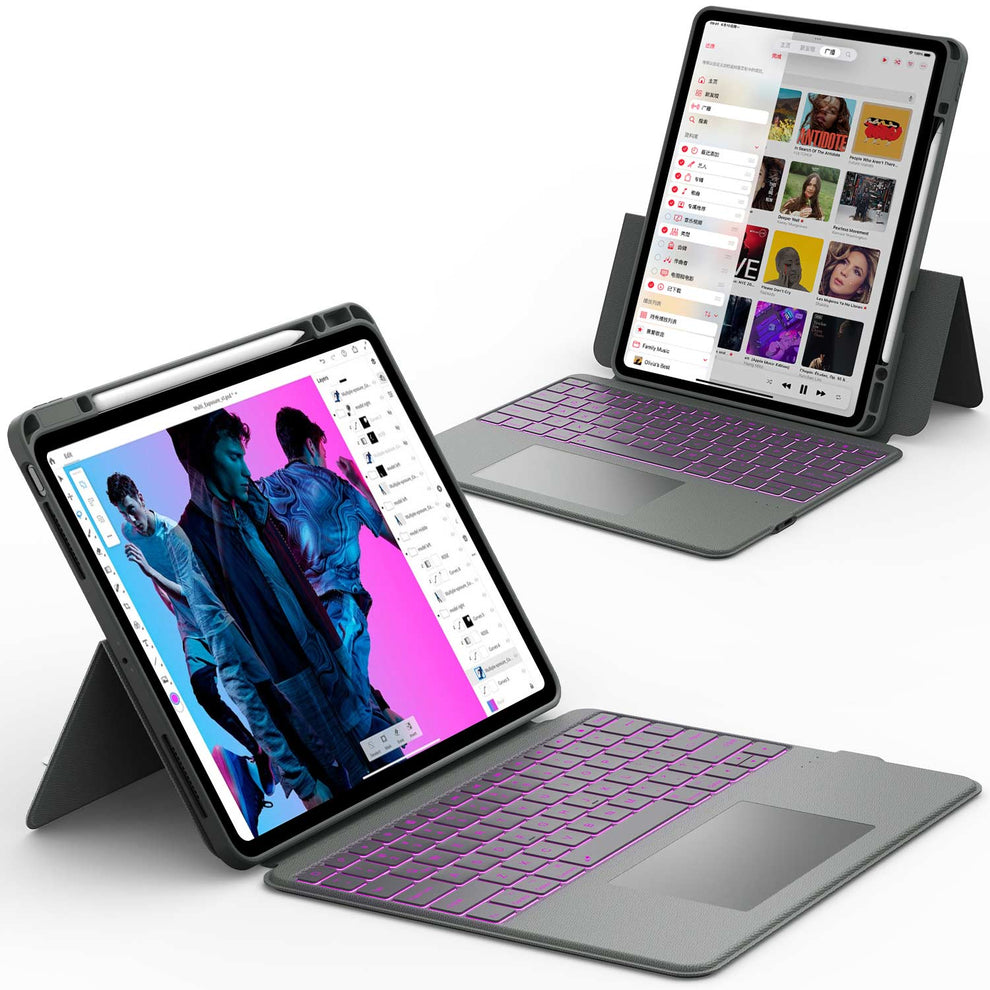
- For power users, an iPad Pro 12.9 + CHESONA ArmorDock keyboard case (with SSD) turns clipboard‑heavy workflows into a laptop‑like experience.
The Clipboard Is There… You Just Can’t See It
On iPad, “clipboard” means a small chunk of memory where iPadOS holds the most recent item you:
- Copied
- Cut
- Copied as an image or link
There is no icon, no app, and no menu labeled “Clipboard.” Instead, you:
- Copy or cut something
- Switch apps
- Paste it where you need it
The clipboard quietly sits in the background, replacing its contents every time you copy or cut something new.
Why You Can’t “Open” a Clipboard Like on Windows
On Windows, you can open a visible clipboard history window. iPadOS takes a different approach:
- Apple leans into simple gestures (tap, hold, paste) instead of a full clipboard UI.
- For privacy, iPadOS now shows prompts like “App pasted from Safari” when apps read your clipboard, so they can’t quietly scrape data in the background.
So when you ask “where is the clipboard on iPad?”, the honest answer is: inside the system, accessed through Paste, not through a standalone app.
How to Access the Clipboard on iPad With Touch

How to Copy Text, Links, and Images
To copy text on iPad:
- Tap and hold on a word until it’s highlighted.
- Drag the blue handles to select more or less text.
- Tap Copy in the floating menu.
To copy a link:
- Tap and hold on the link.
- Tap Copy or Copy Link (label varies by app).
To copy an image (in supported apps):
- Tap and hold the image.
- Tap Copy in the menu that appears.
Whatever you copied is now stored in the clipboard until you copy something else.
How to Paste Clipboard Content on iPad
To paste text or images:
- Tap inside a text field or content area where you want to paste.
- Tap and hold until you see Paste.
- Tap Paste.
If the app supports it, your last copied image or text appears in that spot. That’s the only “window” into the clipboard that iPadOS gives you.
How to Cut and Paste Text
Use Cut when you want to move text instead of duplicating it:
- In an editable text field (Notes, Mail, Docs, etc.), tap and hold on text.
- Select the portion you want.
- Tap Cut.
- Move your cursor to the new location.
- Tap and hold → Paste.
Behind the scenes, Cut replaces the clipboard item just like Copy does.
Where is the Clipboard on an iPad when you use a Keyboard?
A hardware keyboard or keyboard case makes clipboard use much faster and more like a laptop.
Essential Clipboard Keyboard Shortcuts on iPad
A hardware keyboard or keyboard case makes clipboard use much faster, just like a laptop.
| Action | Shortcut | Function |
|---|---|---|
| Copy | Command + C | Copies selection to invisible clipboard |
| Cut | Command + X | Moves selection to clipboard |
| Paste | Command + V | Pastes current clipboard content |
| Undo | Command + Z | Undoes the last action (helpful for accidental pastes) |
These shortcuts work in most apps that support external keyboards: Notes, Mail, Safari, Word, Google Docs, and more.
Why a Keyboard Case Changes How the Clipboard Feels
With a good keyboard case:
- Selecting text is easier using Shift + Arrow keys.
- You can copy/paste without lifting your hands to the screen.
- Shortcuts like Command + Tab (switch apps) and Command + Space (search) pair nicely with clipboard tasks.
If you work heavily on an iPad Pro, a dedicated wireless keyboard for iPad Pro or a keyboard case turns copy‑and‑paste from a two‑hand, screen‑only gesture into a quick, laptop‑style workflow.
For users who live in split‑screen apps and handle big documents, pairing an iPad Pro 12.9 with the CHESONA ArmorDock Series Keyboard Case (with SSD) turns the iPad into:
- a serious business workstation
- large screen
- with keyboard and trackpad
- external SSD storage for files
- and smooth command‑C / command‑V all day long.
How to Enable Universal Clipboard on iPad and iPhone
On iPad and iPhone:
- Go to Settings > General > AirPlay & Handoff.
- Turn on Handoff.
Also ensure:
- Wi‑Fi and Bluetooth are enabled.
- You’re signed into the same Apple ID on both devices.
On your Mac, enable Handoff in System Settings > General > AirDrop & Handoff.
If you’re still getting used to using multiple Apple devices together, a tutorial like “How to sync iPhone and iPad” is a great baseline before you rely heavily on Universal Clipboard for work.
Real‑World Clipboard Sync Examples
- Copy a tracking number from a website on a Mac and paste it into an iPad email.
- Copy text from a scanned document on an iPad, paste it into a Pages file on Mac.
- Copy a password from a password manager on iPhone, paste into a login form on iPad (when using secure autofill).
Universal Clipboard is one of the biggest “hidden” iPad benefits for business users, especially if you work in a mixed Mac + iPad environment.
Troubleshooting Clipboard Issues
Why can't I paste?
- Empty Clipboard: You might have restarted your iPad. A restart clears the clipboard memory.
- App Restrictions: Some banking or secure apps block copying content for security reasons.
- Handoff Lag: If pasting from an iPhone, ensure both devices have a strong Wi-Fi connection.
Conclusion
While the answer to "where is clipboard on iPad" might be disappointing (it doesn't technically exist as an app), understanding how it works helps you avoid losing data.
By mastering the Universal Clipboard and using keyboard shortcuts, you can move text around faster than ever.
Final Thought: The iPad is designed for focus—handling one task at a time. But with the right tools, it becomes a multitasking powerhouse.
Ready to type faster and manage your workflow better? Upgrade your setup with our 2025 iPad 11 Collection cases, or learn how to use an iPad keyboard like a pro to bypass the touchscreen entirely.
FAQs: Common Questions About iPad Clipboard
Where is the clipboard on the iPad Air?
Just like the Pro and Mini, the 2025 iPad Air 11 does not have a visible clipboard app. It is a system service that works in the background.
Can I recover something I copied yesterday?
No. Unless you pasted it somewhere or used a third-party clipboard manager app, once it is overwritten or the device is rebooted, that data is gone.
How do I see my clipboard history on iPad?
By default, you can’t. iPadOS keeps just the most recent clipboard item and doesn’t show history. If you need to see past copies, you’ll need a third‑party clipboard manager app.
How do I clear the clipboard on iPad?
The simplest way is to copy something unimportant, like a single space or a short word—that replaces your previous clipboard content. Restarting your iPad can also help clear clipboard data from memory.
Does the iPad clipboard sync with my iPhone or Mac?
Yes, if Universal Clipboard is enabled and all devices share the same Apple ID with Wi‑Fi, Bluetooth, and Handoff turned on. Then you can copy on one Apple device and paste on another, as long as they’re nearby.
Is it safe that apps can access my clipboard?
Recent iPadOS versions show prompts when apps paste from your clipboard (“App pasted from…”), which improves transparency. Avoid copying highly sensitive content into apps you don’t trust, and pay attention to those prompts so you know who’s accessing your clipboard.