

There is nothing worse than reading an article or watching a video, only to be interrupted by a flashing banner or a pop-up window. If you use your tablet for work or reading—perhaps with a Chesona iPad Keyboard Case—these distractions kill your productivity.
Fortunately, you don't have to suffer through the clutter. To solve the problem of how to block ads on iPad, you can enable Safari's native pop-up blocker, use "Reader View" to strip distractions, install third-party content blocking extensions, or configure a private DNS server.
In this guide, we will walk you through these 4 methods to clean up your browsing experience and speed up your device.
■ What To Know
- Native Tools: Use Safari's built-in "Block Pop-ups" and "Reader View" for immediate relief.
- Best Solution: Install dedicated Content Blockers from the App Store (like AdGuard or 1Blocker) for Safari.
- System-Wide: Use DNS settings to block ads across some apps, not just the browser.
- Parental Control: Restrict ad tracking to protect privacy.
Chesona Products You May Also Like
Explore More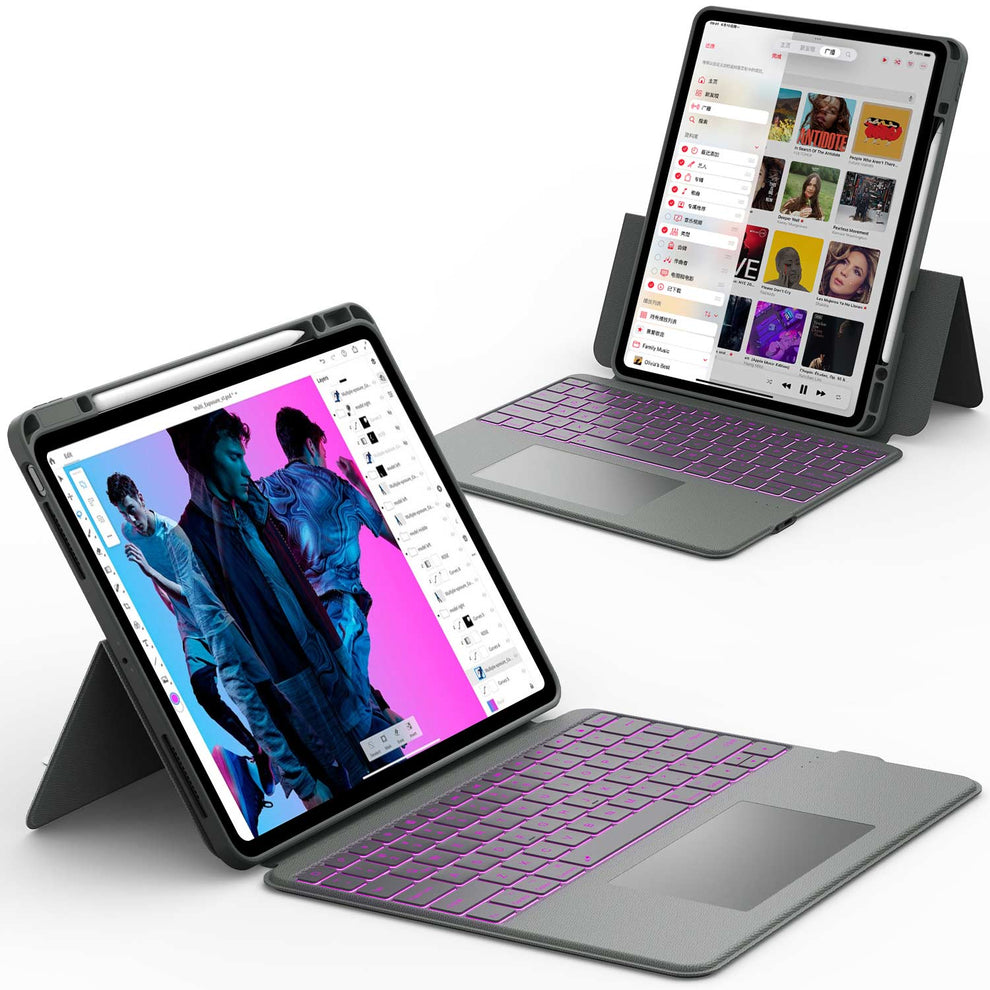


Why Blocking Ads on iPad Actually Matters
Your iPad is packed with apps that serve advertisements. Safari shows banner ads. Games interrupt you with video pop-ups. Social media apps fill your screen with sponsored content. Each ad wastes your time and drains your battery.
But there's more to it than just annoyance.
⚠️ Ads consume data.
Every banner, pop-up, and video ad downloads data to your device. If you're using a limited cellular plan, ads can burn through your monthly allowance fast. Blocking ads saves gigabytes of data each month.
⚠️ Ads slow down your iPad.
Loading advertisements takes processing power. Websites load slower. Apps run slower. Removing ads can noticeably speed up your browsing and gaming.
⚠️ Ads track you.
Companies use advertising networks to follow what you do online. They build profiles of your interests, shopping habits, and personal preferences. These tracking systems follow you across websites and apps. Blocking ads blocks many of these trackers, protecting your privacy.
⚠️ Ads can be dangerous.
Some fake advertisements trick you into downloading malware or visiting phishing websites. Scammers hide inside legitimate-looking ads. Blocking ads removes many of these security risks.
The reality is simple: ads were designed to distract and profit from your attention. Blocking them gives you back control of your iPad.
Method 1: Enable Safari’s Built-in Pop-up Blocker
The first line of defense is already installed on your iPad. Apple includes a basic pop-up blocker that stops windows from opening automatically.
- Open the Settings app.
- Scroll down and tap Safari.
- Under the "General" section, toggle Block Pop-ups to ON (green).
- Further down, under "Privacy & Security," turn on Prevent Cross-Site Tracking.
Note: Sometimes banking or school websites require pop-ups to function. If a site isn't loading correctly, check our guide on how to turn off pop-up blocker on iPad to temporarily disable it.
Method 2: Use Safari Reader View (The Native Solution)
If you are reading news or long articles, you don't need an extra app. Safari's "Reader View" strips away ads, navigation bars, and buttons, leaving just the text and images. This is the perfect setup when using an iPad 11 Pro Keyboard Case for distraction-free reading or studying.
How to activate it:
- Open a webpage in Safari.
- Tap the "Aa" icon or the Reader icon on the left side of the address bar.
- Select Show Reader.
The page will instantly reload in a clean, ad-free format. You can even set this to run automatically for specific websites by long-pressing the "Aa" icon and selecting "Use Reader Automatically."
Method 3: Install Third-Party Content Blockers

For a more robust solution that removes banner ads and video ads in Safari, you need a Content Blocker. Unlike old-school extensions, these are battery-efficient and secure. This is also a key step in learning how to protect your iPad from hackers, as many ads contain malicious code (malvertising).
- Go to the App Store and download a blocker (e.g., 1Blocker, AdGuard, or Ka-Block!).
- Once installed, go to Settings > Safari.
- Tap Extensions.
- Tap the name of the ad blocker you installed and toggle it ON.
These apps maintain a list of bad servers and stop your iPad from even loading the ad data, which saves battery and speeds up Wi-Fi.
Method 4: Use DNS-Based Ad Blocking for System-Wide Protection
Blocking ads inside apps (like games) is harder. One effective method is changing your DNS (Domain Name System) to a provider that filters ads at the network level.
- Go to Settings > Wi-Fi.
- Tap the blue "i" icon next to your connected network.
- Scroll to Configure DNS and switch it from Automatic to Manual.
- Add the server address of an ad-blocking DNS (like AdGuard DNS).
Warning: This only works on Wi-Fi. If you are a power user managing network settings or transferring data via iPad Cases with USB Ports, ensure your DNS doesn't interfere with your local connections.
Blocking Ads for Kids (Games & Apps)
If you are handing the iPad to a child, game ads are a nightmare.
- Airplane Mode: For offline games, simply turn off Wi-Fi. If the app can't talk to the ad server, it can't show ads.
- Guided Access: To prevent kids from accidentally clicking ads and leaving the game, set up Guided Access on iPad. This locks them into a single app.
- Screen Time: Use iPad Parental Controls to restrict the ability to install new apps or make in-app purchases triggered by ads.
Conclusion
Learning how to block ads on iPad transforms your device from a cluttered billboard into the sleek productivity machine Apple intended it to be.
Whether you use the simple "Reader View" or install a powerful extension, the result is a faster, safer, and cleaner experience.
FAQs About Blocking Ads on iPad
Can I block ads on the YouTube app?
It is very difficult to block ads inside the native YouTube app because they are injected directly into the video stream. The most reliable way is to watch YouTube via the Safari browser with a Content Blocker installed (Method 3), or subscribe to YouTube Premium.
Does ad blocking save battery life?
Yes. Ads require data to download and processing power to animate graphics. By blocking them, your iPad does less work. This is great for older devices—check our article on what to do with an old iPad if yours is struggling.
Is it safe to use ad blockers?
Legitimate Content Blockers from the App Store are safe. Unlike desktop extensions that can "read" your screen, iOS content blockers simply give Safari a list of rules (what to block) without seeing your browsing history.
Why am I still seeing ads after installing a blocker?
You may need to update the filter list inside the ad blocker app. Also, ensure the extension is actually enabled in Settings > Safari > Extensions. If a specific site is stubborn, you might want to learn how to block Safari on iPad for specific users.
