

Have you noticed your iPad or iPhone running slower? Maybe you got a dreaded "Storage Full" warning. You deleted some files to make room, but your storage didn't change. Why?
Here is the secret: Your deleted files aren't really gone. They are hiding in "Recently Deleted" folders across different apps on your device.
These hidden files take up storage space for up to 30 days before Apple removes them. To free up space now, you must manually empty these trash folders.
Unlike a computer, there is no single "Recycle Bin" icon. You have to hunt them down. In this guide, we show you exactly where to find every trash folder on your iPad and how to reclaim your gigabytes instantly.
■ What To Know
- The iPad and iPhone do not have one recycle bin like a Mac. Deleted files are saved separately in different apps, so you need to clear them one by one.
- To empty deleted messages, open Messages, tap Filters, go to Recently Deleted, then tap Delete All.
- To delete recently removed files, open the Files app, tap Browse, open Recently Deleted, tap the More icon, and choose Delete All.
Chesona Products You May Also Like
Explore More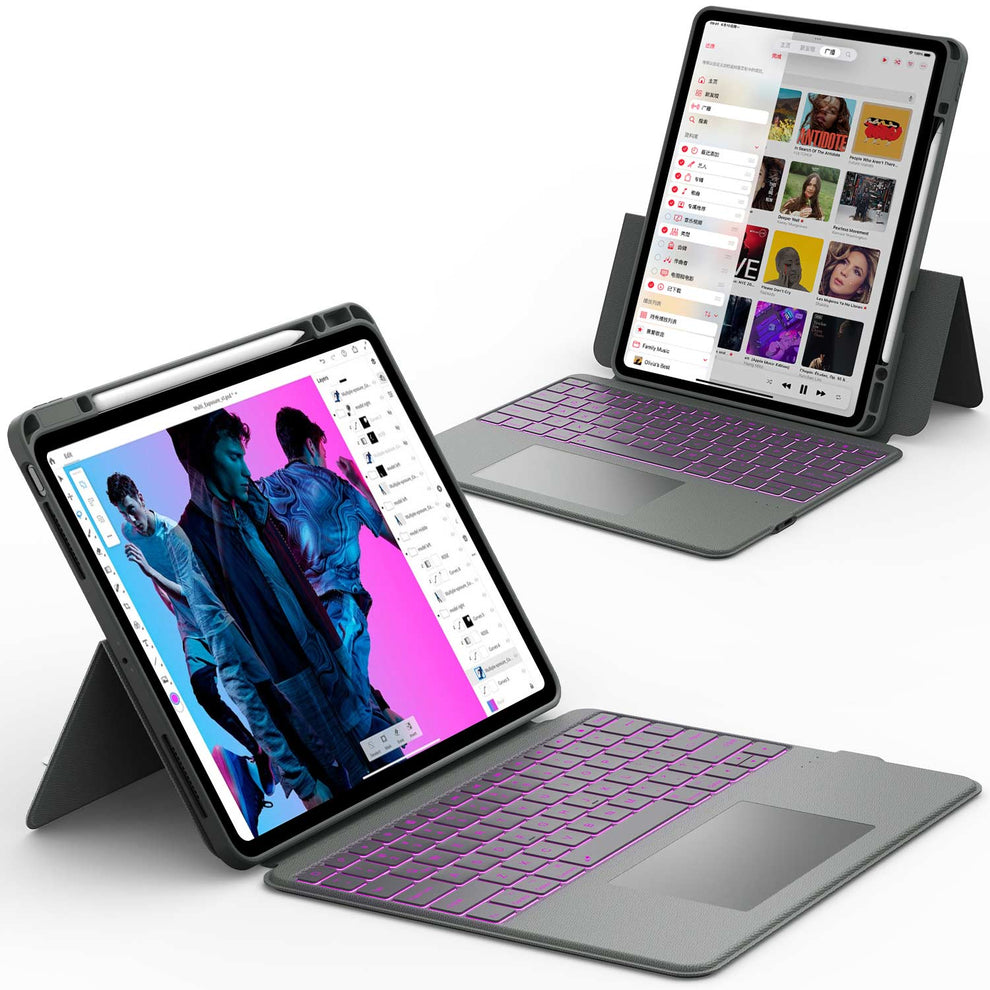


Why Emptying Trash on Your iPad and iPhone Actually Matters
Emptying the trash (or "Recently Deleted" folders) on an iPad and iPhone is essential because deleted files are not immediately removed from your device.
Instead, they are moved to a temporary, hidden storage area where they remain for 30 days.
Failing to empty these folders keeps your device full, leading to slow performance, app crashes, and "storage full" notifications, even if you believe you have deleted old items.
How to Empty Trash in the Photos App

The Photos app is usually where you lose the most storage space. If you regularly delete photos or videos, the Recently Deleted album fills up quickly.
Step 1: Open the Photos App
Tap the Photos app on your home screen. It's the colorful flower icon. You'll see your photo library open up.
Step 2: Go to Albums
Look at the bottom of your screen. You should see tabs including "Albums." Tap Albums. This shows you all your photo albums and collections.
Step 3: Find Recently Deleted
Scroll down to the very bottom of the Albums list. You'll see an album called "Recently Deleted." It usually shows a small trash can icon next to it. Tap it.
When you open Recently Deleted, you'll see all the photos and videos you've deleted in the past month. Each photo shows a countdown timer.
For example, it might say "Deleted 5 days ago" or "Expires in 12 days." This tells you how many days until the photo gets permanently removed.
Step 4: Select and Delete Everything
Now for the important part:
- Tap the word "Select" in the upper right corner
- Tap "Select All" to choose every photo and video in this folder
- Look for the "Delete" button (usually red and at the bottom right)
- Tap Delete to confirm
Your photos are now permanently gone. You've freed up storage space immediately. You don't have to wait 30 days for Apple to automatically delete them.
💡 Helpful tip: If you want to recover a specific photo before deleting everything, just tap the photo and look for a "Recover" button. This puts the photo back in your main library.
📌 Expert Tip: Are you deleting photos solely because you are running out of space? You shouldn't have to sacrifice your memories just to install an update. A better solution is to offload them to a physical drive.
The Chesona Case with USB Ports features a built-in hub that lets you plug a standard USB flash drive or SD card directly into your iPad case. You can move your photos to a thumb drive for safekeeping instead of deleting them.
👉 Read More: How to Delete All Photos from iPad: Step-by-Step Guide
How to Empty Trash in the Mail App

Emails with photos and attachments can consume significant storage. Every email account you've set up on your iPad has its own trash folder.
Step 1: Open the Mail App
Tap the Mail app. It looks like an envelope. You'll see your inbox open.
Step 2: Get to Mailboxes
Look for the word "Mailboxes" or a mailbox icon, usually in the top left corner. Tap it. This shows you all your email accounts and their folders.
Step 3: Find Your Trash Folder
For each email account, you'll see folders like:
▸ Inbox
▸ Drafts
▸ Trash (sometimes called "Bin" or "Deleted Items")
▸ Sent
Each account has its own trash folder. Look for the one labeled "Trash" or "Deleted Items" under the email account you want to clean up.
Step 4: Delete All Emails
Tap into the Trash folder. Now:
▸ Tap "Edit" in the top right corner
▸ Tap "Select All"
▸ Tap "Delete All" at the bottom (usually in red)
▸ Confirm by tapping Delete again
Important note: You have to do this for every email account. If you have Gmail, Outlook, Yahoo, and iCloud Mail all set up, you need to repeat these steps four times. Each account's trash is separate.
Emails with photo attachments use the most storage. If you've been deleting emails with lots of pictures or videos, clearing the mail trash can free up several gigabytes.
📌 Efficiency Hack: Managing thousands of emails on a touch screen is tedious. Tapping "Edit" and scrolling can be slow. If you use a Chesona iPad Keyboard Case, you can speed this up massively.
How to Empty Trash in the Files App
The Files app stores documents, PDFs, spreadsheets, and files you've downloaded. If you've deleted files here, they're sitting in Recently Deleted, taking up space.
Step 1: Open the Files App
Tap the Files app. It's a folder icon. You'll see your file locations open.
Step 2: Tap Browse
At the bottom of the screen, look for the "Browse" tab. Tap it. This shows you all your file locations.
Step 3: Find Recently Deleted
Look at the left side of the screen. You'll see a sidebar with locations like iCloud Drive, On My iPad, and others. Scroll down in this sidebar until you see "Recently Deleted." Tap it.
(On iPhone, the sidebar might be hidden. Look for a menu icon or three horizontal lines in the top left. Tap it to show the sidebar, then find Recently Deleted.)
Step 4: Delete Files Permanently
Inside Recently Deleted:
▸ Tap the "Select" button in the top right
▸ Tap "Delete All"
▸ Confirm by tapping Delete
Files show how long they have before automatic deletion. For example, "Last modified 3 days ago" means this file will auto-delete in 27 days unless you delete it now.
How to Empty Trash in the Notes App

Notes might seem small, but they add up, especially if you have sketches or drawings with embedded images.
Step 1: Open Notes
Tap the Notes app. It's a yellow icon with a notepad. You'll see your notes library.
Step 2: Go to Folders
At the bottom of the screen, tap "Folders." This shows all your note folders and collections.
Step 3: Tap Recently Deleted
Look for an option called "Recently Deleted" near the bottom. Tap it. You'll see all the notes you've deleted recently.
Step 4: Delete Notes Permanently
Now:
▸ Tap "Edit" in the top right
▸ Tap "Select All" to choose all deleted notes
▸ Tap "Delete All" at the bottom
▸ Confirm the deletion
If your notes include drawings or sketches, these use more storage than plain text. Check Recently Deleted for these first if you're trying to free space quickly.
How to Clean Up the Messages App
Text messages, iMessage photos, and video clips add up over time. The good news is that Messages works differently from the other apps.
Step 1: Open Settings
Tap Settings on your iPad or iPhone. It's usually a gear icon.
Step 2: Find Messages
Scroll down through Settings until you see "Messages." Tap it.
Step 3: Look for Keep Messages
Scroll down in the Messages settings. Find an option called "Keep Messages." This probably says "Forever" right now, which means messages stay forever.
Step 4: Change to a Shorter Time
Tap "Keep Messages" and choose one of these options:
▸ 30 Days (recommended for most people)
▸ 1 Year
▸ Forever (uses the most storage)
If you set it to 30 days, old messages automatically delete every 30 days. This happens in the background without you having to do anything. It's a slow way to free storage, but it works over time.
Step 5: Delete Old Conversations Right Now
For faster results, go back to the Messages app and:
▸ Long-press on any conversation thread
▸ Tap Delete
▸ Or swipe left on a conversation and tap the trash icon
Large group chats with many photos and videos consume the most storage. Delete any old group chats you no longer need.
Emptying Trash in Cloud Services (iCloud, Google Drive, Dropbox)
If you use cloud storage, deleted files sit in those services' trash too. They're completely separate from your device trash.
Clearing iCloud Drive Trash
Files you delete from iCloud Drive stay in the Recently Deleted section of iCloud (different from device Recently Deleted).
To clear them:
▸ Go to Settings on your iPad or iPhone
▸ Tap your name at the very top
▸ Tap iCloud
▸ Tap Manage Storage
▸ Tap Photos or Documents to see what's using space
▸ Or visit iCloud.com on a computer to manually delete items from iCloud Trash
Clearing iCloud Drive trash frees up your cloud storage plan. This matters if you use a 50 GB or 200 GB plan and it's almost full.
Clearing Google Drive Trash
Using the Google Drive app on your device:
▸ Open Google Drive app
▸ Tap the menu (three lines) at top left
▸ Tap Trash or Bin
▸ Tap a file you want to delete permanently
▸ Tap the Delete button (usually a trash icon)
For Gmail:
▸ Open the Gmail app
▸ Tap the menu
▸ Tap Trash or Bin
▸ Tap Select All
▸ Tap Delete
Clearing Dropbox Trash
Using the Dropbox app:
▸ Open Dropbox
▸ Tap the Files tab
▸ Look for Trash or Deleted files
▸ Tap files you want to permanently delete
▸ Tap Delete to confirm
Understanding Apple's 30 Day Safety Net
Apple built in a safety feature: Deleted files stay in the Recently Deleted folder for 30 days before they're gone forever.
This is actually really helpful.
How the Timeline Works
Day 1: You delete a photo. It moves to Recently Deleted. Your device shows storage as available again.
Days 2 to 30: The photo sits in the Recently Deleted folder. If you accidentally deleted it and want it back, you can recover it.
Day 30: Apple automatically and permanently deletes the file. At this point, recovery is impossible.
How to Recover Files Within 30 Days
Did you accidentally delete something important?
In Photos app:
▸ Go to Albums, Recently Deleted
▸ Tap the photo you want back
▸ Tap Recover (or tap Select, then Recover)
▸ The photo goes back to your main library
In Files app:
▸ Go to Browse, Recently Deleted
▸ Touch and hold the file you want
▸ Tap Recover
▸ Or select multiple files and tap Recover at the bottom
In Notes:
▸ Go to Folders, Recently Deleted
▸ Tap and hold the note
▸ Tap Recover
This 30-day window is important. You can safely delete files knowing you have a full month to change your mind.
Why Your Storage Is Still Full After Emptying Trash
You have followed every step above. You have emptied Photos, Files, Mail, and Messages. You check your iPad storage, and it still says full.
You look at the graph, and a massive gray bar labeled "System Data" (or previously "Other") is eating up 10GB or more.
What is System Data?
System Data consists of logs, caches, Siri voices, and temporary files used by apps to run smoothly.
For example, when you stream a movie on Netflix, the iPad caches parts of it so it doesn't buffer. When you browse the web, Safari saves images so pages load faster next time.
Usually, the iPad deletes this cache automatically when space gets low. But sometimes, it gets stuck.
How to Clear System Data Caches:
-
Clear Safari Cache:
- Go to Settings > Safari.
- Scroll down and tap Clear History and Website Data.
- Warning: This closes all your open tabs and logs you out of websites.
-
Restart Your iPad:
- It sounds simple, but a "hard restart" forces the iPad to recalculate storage and clear temporary logs.
- Press Volume Up (release), Volume Down (release), then hold the Power button until you see the Apple logo.
-
The "Offload" Trick:
- Go to Settings > General > iPad Storage.
- Look for apps that have a high "Documents & Data" size. Social media apps (TikTok, Instagram) are notorious for this.
- Tap the app and select Offload App. This deletes the app code but keeps your login.
- Then tap Reinstall App. This often flushes the cache, significantly reducing the "System Data" footprint.
If you are struggling specifically with cache issues, we have a detailed walkthrough on how to clear cache on iPad that dives deeper into specific app caches.
Prevent Emptying Trash: Use iPad Keyboard Case with SSD

Ideally, you shouldn't have to scramble to empty trash bins every time you want to take a photo. If you find yourself doing this weekly, your iPad's internal storage is simply too small for your workflow.
Instead of constantly deleting files, consider expanding your storage capabilities.
1. Upgrade to an SSD Keyboard Case: Why rely on cloud subscriptions or loose dongles? You can now add physical storage directly to your iPad setup.
- The Ultimate Solution: The CHESONA ArmorDock Series Keyboard Case is a game-changer for storage. It features a built-in M.2 SSD slot that lets you add up to 2TB of extra space.
You can securely offload your entire photo library and heavy video files to the case, turning your iPad into a personal cloud without an internet connection.
It also adds a 4K HDMI port and USB 3.0 slots, effectively giving your iPad the connectivity of a laptop.
Troubleshooting: "I Can't Empty the Trash!"
Sometimes, technology misbehaves. Here are common reasons why you might not be able to empty the trash and how to fix them.
Issue 1: The Trash icon is greyed out.
- Cause: This often happens in Mail if the account is syncing with a server (IMAP) that is currently offline or experiencing errors.
- Fix: Check your internet connection. Toggle Airplane mode on and off. If that fails, go to Settings, delete the email account, and re-add it.
Issue 2: "Item cannot be deleted" error in Files.
- Cause: The file might be in use by another app, or it is a locked file.
- Fix: Force close all apps. Restart the iPad. Try deleting the file again.
Issue 3: Photos reappear after deleting.
- Cause: This is an iCloud Sync issue. Your iPad deletes them, but iCloud pushes them back down from the cloud.
- Fix: Ensure you have a stable Wi-Fi connection. Sign out of iCloud (Settings > [Your Name] > Sign Out) and sign back in.
For more complex hardware or software glitches, check our iPad Problems Troubleshooting Guide.
Final Thoughts
Managing storage on an iPad doesn't have to be a headache. While Apple doesn't give us a single "Empty Trash" button, knowing where to look in Photos, Files, Mail, and Notes puts you back in control of your device.
By regularly checking these "Recently Deleted" folders, you ensure your iPad remains fast, responsive, and ready for whatever you need to download next.
Final Thought: Your iPad is a powerful tool, but it is only as good as its available space. Don't let digital clutter slow you down.
✨ If you are ready to take your iPad productivity to the next level—and stop worrying about deleting files—upgrade your setup today. Explore our Best Selling iPad Series Collection for keyboards, cases, and accessories designed to help you do more with your device.
Frequently Asked Questions About Emptying Trash on iPad
Can I permanently delete files right away, or do I have to wait 30 days?
You can delete right away. Files go to Recently Deleted first, but you can immediately delete them again from Recently Deleted. This permanently removes them. No waiting required.
What happens if I never empty the trash?
Apple automatically deletes everything from Recently Deleted after 30 days. You don't have to do anything. However, manually emptying trash immediately frees storage space. You should empty trash if you're running low on space or want to be sure sensitive files are gone quickly.
Can I recover files after permanently deleting them from Recently Deleted?
Not through your iPad or iPhone alone. Once deleted from Recently Deleted, they're gone for good. If you have:
• iCloud backup (can restore entire device)
• iTunes backup (can restore entire device)
• Third party recovery apps (sometimes work if data wasn't overwritten)
Otherwise, it's gone.
Why does Recently Deleted show but no files appear?
The folder is empty. All files in it have been auto-deleted after 30 days. No action needed. Your storage is already cleared.
