

Your Chesona keyboard case is dead. You tried to type, and nothing happened. Or maybe you haven't used it in a few weeks, and you're unsure if it still has power. Don't panic.
The good news is that how to charge your iPad keyboard is simple and fast. Unlike older models with confusing proprietary cables, Chesona keyboards utilize standard USB-C charging. You likely already have the cable you need right on your desk.
In this guide, we will walk you through finding the port, understanding the indicator lights, and troubleshooting common charging issues to get you back to typing in minutes.
■ What To Know
- USB-C is all you need: Chesona keyboards charge with standard USB-C cables
- Charging takes 2-3 hours: From completely empty to fully charged
- Look for the charging port: Usually on the side or edge of the keyboard case
- Check the indicator light: Red light means charging, green means fully charged
- First charge matters: Let it charge fully before first use (at least 2-3 hours)
- Battery lasts 80+ hours: You won't need to charge it very often with regular use
- Standby time is long: Over 100 days if you don't use it
- You can use it while charging: Keep typing while the keyboard powers up
Why Charging Your Chesona Keyboard Matters
Your Chesona keyboard has a rechargeable lithium battery inside. This battery powers the keyboard, the backlit keys, and the trackpad. Like any battery, it slowly runs down as you use it.
Understanding how to charge properly keeps your keyboard working smoothly and extends the battery life significantly.
Here's why it matters: A keyboard that won't turn on because the battery is dead stops you from being productive.
You might be writing an important email or working on a project when suddenly nothing responds. Knowing how to charge prevents these frustrating moments.
Proper charging also extends battery health. Batteries degrade over time, especially if you charge them incorrectly.
By following the right charging practices, your Chesona keyboard will last years longer and maintain stronger battery performance.
Chesona Products You May Also Like
Explore More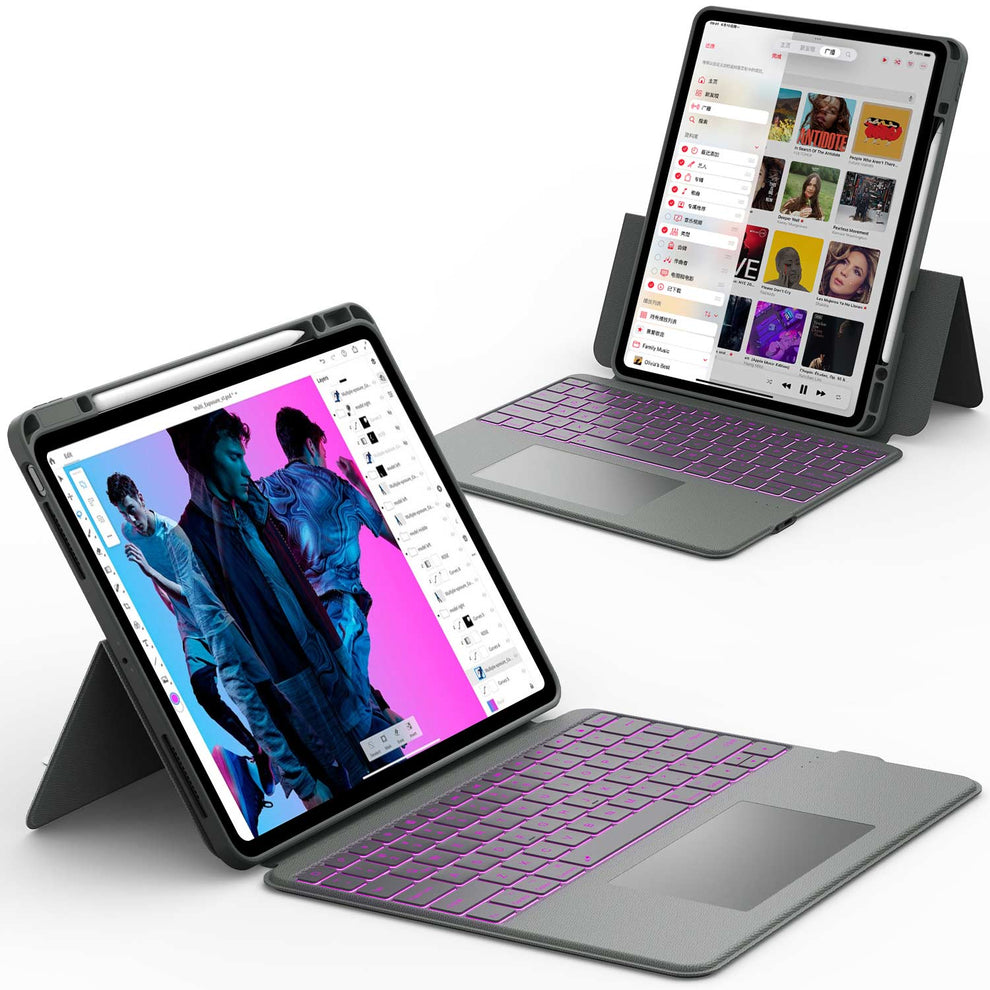


Finding Your Charging Port

Your Chesona keyboard has a charging port, and you need to know where it is.
Where the Port Is Located
The USB-C charging port on most Chesona keyboard cases is located on the side or lower edge of the keyboard. Exactly where it depends on your specific model, but it's always easy to spot.
Look for a small, rectangular opening. That opening is the USB-C port. Some models have a small protective flap covering it, similar to old phone charging ports. If you see a flap, gently open it to access the port.
The charging port is never hidden. You won't need to take apart your keyboard or remove pieces. Just look around the edges of the keyboard unit itself, not the iPad case.
📌 Pro Tip: Check your Chesona manual or the label on your keyboard if you're unsure. Most manuals include a photo showing exactly where the charging port is on your model.
Comparing Different Charging Ports
Older keyboard cases sometimes used Lightning ports or Micro-USB ports. Chesona switched to USB-C because it's faster, more durable, and more universal.
If you have an older Chesona model, it might use a different port. Check your keyboard or manual to be sure. But if you've bought a Chesona keyboard in the last three years, it's definitely USB-C.
How to Charge Chesona's iPad Keyboard

Charging your Chesona keyboard is straightforward, but following these steps ensures you do it right.
Step 1: Find the Right Charging Cable
You need a USB-C cable. The good news is that most people already have several of these. USB-C is the same cable used for:
• iPad charging (newest models)
• Android phones
• Modern laptops
• Many other devices
If you have an iPad that charges with USB-C, that same cable works perfectly for your Chesona keyboard.
If your cable is damaged, frayed, or loose at the connectors, replace it. A damaged cable charges slowly or not at all.
Step 2: Locate the Charging Port on Your Keyboard
Before plugging anything in, find the USB-C port on your keyboard. If there's a protective flap, open it gently.
Step 3: Insert the Cable
Insert the USB-C end of the cable into the charging port on your keyboard. Push it in straight. It should slide in smoothly and click when fully seated.
You shouldn't need to force it. If it doesn't go in easily, you might have the wrong cable or be inserting it at the wrong angle. Try again gently.
Step 4: Connect to Power
Take the other end of the USB-C cable and plug it into a power source. Your options include:
• Wall charger (like the one that came with your iPad)
• Computer USB port
• Power bank
• Any USB-C power adapter rated at least 5V/1A
A wall charger is fastest. USB ports on computers work but charge slower. Power banks work fine if they have USB-C output.
Step 5: Watch for the Indicator Light
Look at your keyboard. Most Chesona keyboards have a small LED indicator light, usually near the power button.
When charging starts:
• Light turns red (or stays red) = currently charging
• Light turns green (or stops blinking) = fully charged
• Light is off = not charging (might mean already charged or error)
If the light doesn't turn on, try:
- Checking that your cable is firmly inserted
- Using a different power outlet
- Waiting 10-15 seconds (sometimes it takes a moment to recognize charging)
Step 6: Let It Fully Charge
A full charge takes 2-3 hours. You can:
• Leave it plugged in while the light shows charging status
• Use the keyboard while charging (you can type if you want)
• Close the case and let it charge in the background
Most people charge overnight or while working on other tasks.
Step 7: Unplug When Done
When the light shows green or turns off, your keyboard is fully charged. Unplug the cable from both the keyboard and the power source.
Your keyboard is now ready to use for 80+ hours of typing.
Understanding Battery Life and Charging Times
Your Chesona keyboard battery delivers impressive performance, but understanding the numbers helps you manage charging better.
How Long a Full Charge Lasts
After one complete charge, your Chesona keyboard works for:
• 80+ hours of active typing
• 100+ days of standby time
• Weeks of typical daily use
This is substantial. You won't be charging weekly. Most users charge their keyboard once every 2-4 weeks, depending on how heavily they use it.
Standby time is even more impressive. If you fully charge it and then don't use it for 30 days, it will still retain most of its battery capacity.
Charging Time Explained
A full charge from completely empty takes 2-3 hours. This is standard for lithium batteries in keyboard cases.
First charge (for a brand new keyboard) should be a complete charge. Let it sit plugged in for the full 2-3 hours to ensure the battery is fully calibrated.
Partial charges work too. Charging for 1 hour gives you about 30-40 hours of use. This is helpful if you just need a quick top-up.
Battery Degradation Over Time
All rechargeable batteries slowly degrade. After about 500-1000 charge cycles, your keyboard battery will hold about 80% of its original capacity. This is normal and expected.
One charge cycle means going from fully charged to fully depleted. So if you charge twice a month, it takes about 4-8 years to reach 500 cycles.
Your Chesona keyboard should work great for 3-5 years of normal use before battery degradation becomes noticeable.
How to Know Your Keyboard Needs Charging
Your keyboard will give you clear signals when the battery is running low.
Indicator Light Warnings
The LED indicator light on your keyboard changes color to warn you:
• Solid green = fully charged
• Blinking or slow red = battery is low (charge soon)
• Fast blinking red = battery is very low (charge immediately)
• No light = either fully charged or something's wrong
When you see a blinking red light, plug in the charger. You have maybe 30 minutes to 1 hour of use left.
Keyboard Performance Changes
A low battery keyboard might:
• Feel sluggish (slight delay when typing)
• Have dimmer backlit keys
• Disconnect and reconnect from your iPad repeatedly
These aren't always obvious, but they're signals to charge.
No Obvious Warning
Sometimes the keyboard just stops responding. Keys don't register. If your keyboard suddenly doesn't work, the battery is probably dead.
Plug it in to charge. After 30 minutes, try using it again. If the battery was the problem, it will come back to life.
Troubleshooting Charging Problems
Sometimes your Chesona keyboard won't charge, even though everything seems right.
Here's how to fix it.
The Light Won't Turn On
First, try these:
- Check that the cable is fully inserted into the charging port
- Try a different USB-C cable (your cable might be damaged)
- Try a different power outlet
- Wait 30 seconds after plugging in
If none of those work:
- Try plugging into a computer's USB port instead of a wall charger
- Clean the charging port on the keyboard (use a clean, dry cloth)
- Clean the USB-C cable connector
If it still won't charge: The charging port might be damaged or the battery might be dead. Contact Chesona support or check your warranty.
Slow Charging
Your keyboard is charging, but it's taking forever.
Try these fixes:
- Use a wall charger instead of a computer USB port (computers provide less power)
- Disconnect the keyboard from your iPad while charging (it charges faster when not in use)
- Try a different USB-C cable
- Make sure you're using an adapter that provides at least 5V/1A power
Budget phone chargers sometimes provide very little power. If you're using a weak charger, upgrade to one with more power output.
Keyboard Gets Hot While Charging
A warm keyboard while charging is normal. Batteries naturally warm up. But if it's too hot to touch, that's a problem.
Stop charging immediately if the keyboard feels hot. Let it cool down for 30 minutes before trying again.
If it consistently gets too hot:
- Try a different power adapter (lower amperage might help)
- Don't use the keyboard while charging (disconnect from iPad)
- Charge in a cooler environment
- Contact Chesona if the problem continues
Battery Won't Hold a Charge
Your keyboard charges but dies within a few hours.
This might mean:
- The battery is wearing out (normal after 5+ years)
- The keyboard is connected to your iPad while charging (slows charging)
- You're not letting it fully charge (give it the full 2-3 hours)
Try these solutions:
- Do a full charge overnight (let it sit for 4 hours minimum)
- Restart the keyboard (turn it off for 30 seconds, then back on)
- Restart your iPad
- Update your iPad's software (Settings > General > Software Update)
If it still won't hold a charge after trying these steps, the battery might need replacement. Contact Chesona for warranty options.
Best Practices for Longer Battery Life
Smart charging habits extend your keyboard's battery life by years.
Practice 1: Full Charges Once a Month
Even if you don't need it, fully charge your keyboard completely once a month. This helps calibrate the battery and prevents degradation.
Let it charge from completely empty to completely full at least once every 30 days.
Practice 2: Avoid Extreme Temperatures
Batteries don't like heat or cold.
• Don't leave your keyboard in direct sunlight
• Don't charge in very cold environments
• Store it in a normal room temperature (around 70 degrees Fahrenheit)
• Don't charge near heat sources like radiators or heaters
Temperature stress damages batteries faster than normal use.
Practice 3: Use It Regularly
Paradoxically, using your keyboard regularly is better for battery health than letting it sit unused.
Regular charging and discharging cycles keep the battery healthy. A keyboard that charges every week and discharges fully stays healthier than one that sits charged for 6 months.
Practice 4: Charge to 80% Normally
This one is optional but helpful. Instead of always charging to 100%, try charging only to about 80%.
Batteries last longer when they're not held at 100% all the time. If your iPad supports this (newer models do), consider limiting charges to 80%.
Save the full 100% charges for when you really need the extra battery time.
Practice 5: Don't Leave It Dead for Months
If you're not using your keyboard for an extended period, charge it to about 50% before storing it.
A keyboard left completely dead for months can develop battery issues. A 50% charge is the sweet spot for storage.
Connecting Your Keyboard After Charging
You've charged your Chesona keyboard. Now connect it to your iPad.
For Bluetooth Keyboards
- Make sure Bluetooth is on (Settings > Bluetooth)
- Turn on the keyboard
- iPad should recognize it automatically
- Tap the keyboard name when it appears
- Type the pairing code if asked
- Done
Your keyboard is now paired and ready to use.
For Magnetic-Attached Cases
Some Chesona keyboards attach magnetically. Just snap them onto your iPad case. The iPad recognizes the keyboard automatically.
If the keyboard doesn't work after attaching:
- Disconnect and reconnect it firmly
- Restart your iPad
- Make sure the keyboard is turned on
Final Thoughts: Your Keyboard Stays Ready
Charging your Chesona keyboard is simple. Plug in a USB-C cable, wait 2-3 hours, and you're done. The battery lasts weeks between charges.
By following the charging practices in this guide, your keyboard will remain reliable for years. You won't deal with sudden dead batteries in the middle of important work.
The key points to remember:
• USB-C charging is standard and simple
• Full charges take 2-3 hours
• Battery lasts 80+ hours per charge
• Check the indicator light for charging status
• Let it fully charge once a month
• Avoid extreme temperatures
• Use it regularly to keep battery healthy
Your Chesona keyboard is a tool that improves your iPad productivity. Keeping it charged means keeping it ready for work whenever you need it.
Charge your keyboard today, and you'll have 80+ hours of typing ahead.

CHESONA ArmorDock Series Keyboard Case for iPad Pro with SSD
- All-in-One Storage Expansion Built-in M.2 SSD slot (supports 2230/2242/2260/2280 up to 2TB) transforms your iPad into a secure personal cloud for private file management offline.
- 4K Studio-Grade Output Experience sharp, ultra-smooth visuals with 4K@60Hz HDMI output—perfect for professional presentations and dual-screen workflows.
- Full-Speed Connectivity Hub Features Type-C, USB 3.0, and SD/TF card slots for high-speed data transfer and instant plug-and-play access to all your peripherals.
- 7-Color Backlit Keyboard Optimized for productivity day or night with customizable 7-color backlighting and adjustable brightness levels.
- Precision Multi-Touch Trackpad Smooth, responsive gesture control allows you to scroll, swipe, and switch apps effortlessly—delivering a true laptop-like experience.
FAQs About Charging Chesona Keyboards
Do I need the original Chesona charging cable?
No. Any USB-C cable works. The cable doesn't have to be from Chesona. You can use your iPad's cable, phone cable, or any third-party USB-C cable. The only requirement is that it's USB-C and in good condition.
Can I use fast chargers designed for phones?
Yes, but it won't charge significantly faster. Keyboard batteries charge at their own rate. A 100W fast charger won't charge your keyboard faster than a 30W charger. They'll both take 2-3 hours.
Is it okay to leave my keyboard plugged in overnight?
Yes, completely safe. Once fully charged, the keyboard stops accepting power. Leaving it plugged in overnight won't damage the battery or create a fire hazard. Modern batteries have built-in safety cutoffs.
Why does my keyboard take longer to charge than my iPad?
Keyboards have smaller batteries than iPads. A full charge for a keyboard is 2-3 hours, but iPads often take 3-4 hours because they have much larger batteries. Also, keyboard chargers are usually lower power than iPad chargers.
Can I charge my keyboard with my iPad's power adapter?
Yes, if your iPad uses USB-C. Just use the same USB-C cable and adapter. The keyboard and iPad can use identical charging equipment. For newer iPads with USB-C, this is perfect.
How often should I charge my keyboard?
Depends on usage. Light users might charge every 4-6 weeks. Heavy users might charge every 2-3 weeks. The indicator light will tell you when it's low. Don't worry about a perfect schedule.
