







Sharing audio on your iPad just got easier. Apple's Audio Sharing feature lets you connect two pairs of AirPods or Beats headphones to a single iPad so you and a friend can watch movies, listen to music, or enjoy videos together without bothering anyone around you.
You can connect two sets of AirPods to one iPad by using the Share Audio option in the Control Center, which allows both pairs to play the same audio simultaneously. The process takes just a few minutes and works with most newer iPad models and AirPods. You don't need any special apps or equipment beyond what you already own.
This guide shows you how to connect two AirPods to your iPad, which devices work with this feature, step-by-step setup, and how to control volume for each set.
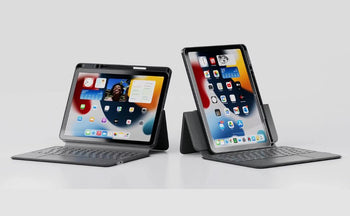
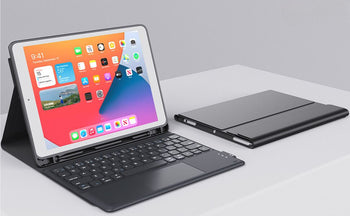
Maximize your productivity while enjoying shared audio. Our guide showed you audio features, but explore our Bluetooth Keyboard for iPad collection to transform your iPad into a complete workstation with typing comfort and wireless convenience.Is a Magnetic Case Good for an iPa
Compatibility and Requirements

Audio Sharing requires specific iPad models, updated software, and compatible wireless earbuds. You'll need to check your iPad generation, operating system version, and AirPods or Beats model before connecting two sets of earbuds.
Supported iPad Models and Software
Your iPad must be a newer model to use Audio Sharing. The feature works with iPad (5th generation) and later, iPad mini (5th generation) and later, and iPad Air (3rd generation) and later. It also supports iPad Pro 12.9-inch (2nd generation) and later, iPad Pro 11-inch, and iPad Pro 10.5-inch.
You need iPadOS 13 or newer installed on your device. Without this operating system version, the Audio Sharing option won't appear in your Control Center.
To check your iPad model, look at the back of your device where the model information is printed. To verify your software version, go to Settings > General > About and look for the software version number.
Compatible AirPods and Beats Devices
Audio Sharing works with several Apple and Beats wireless earbuds and headphones. You can use AirPods (1st generation) and later, AirPods Pro (all generations), and AirPods Max.
Compatible Beats models include:
- Powerbeats and Powerbeats Pro
- Powerbeats3 Wireless
- Beats Solo3 Wireless
- Beats Studio3 Wireless
- Beats Fit Pro
- BeatsX and Beats Flex
- Solo Pro
You can mix and match these devices. For example, you could connect AirPods Pro to your iPad while your friend connects Beats Fit Pro.
Checking for Share Audio Feature
To confirm your iPad has Audio Sharing, start playing any audio and swipe down from the top right corner to open Control Center. Look for the AirPlay button, which appears as a triangle with concentric circles above it.
Tap the AirPlay button next to your currently playing audio. If your device supports Audio Sharing, you'll see a Share Audio option in this menu. This option only appears when you have one set of compatible AirPods or Beats already connected to your iPad.
If you don't see this option, update your iPadOS through Settings > General > Software Update. Make sure both sets of AirPods have current firmware as well.
Sharing audio is just one iPad feature worth protecting. Check out our iPad Pro 11-inch Case with Pencil Holder to safeguard your device and Apple Pencil together in one secure, convenient solution.
How to Connect Two AirPods to One iPad

Apple's Audio Sharing feature lets you connect two pairs of AirPods to your iPad so both people can listen at the same time. The process starts with pairing the first set, then using Control Center to activate Share Audio and connect the second pair.
Pairing the First Pair of AirPods
Turn on Bluetooth in your iPad settings before you start. Place the first pair of AirPods in their charging case and open the lid.
Hold the case close to your iPad. A prompt will pop up on your screen showing that your iPad detected the AirPods. Tap Connect to pair them.
Once connected, start playing music or a video from any app. You need to have audio playing before you can access the Share Audio option.
Activating Share Audio from Control Center
Swipe down from the top right corner of your iPad screen to open Control Center. Look for the AirPlay icon next to your currently playing audio. This icon looks like a triangle underneath concentric circles.
Tap the AirPlay icon to see your audio settings. You'll see your connected AirPods listed here along with other available options.
Select Share Audio from the menu. This activates dual audio mode on your iPad and prepares it to connect a second pair of wireless headphones.
Connecting the Second Pair of AirPods
Hold the second AirPods case close to your iPad with the earbuds inside. Open the lid of the case. Your iPad will start searching for the nearby AirPods.
If you're using AirPods Max, you don't need a case. Just hold them near your iPad. For Beats headphones, put them in pairing mode first.
When the second pair appears on your screen, tap Share Audio next to their name. Both sets of AirPods are now connected to one iPad and playing the same audio.
Using the AirPlay Icon and On-Screen Prompts
The AirPlay icon appears in multiple places for easy access. You'll find it in Control Center, on your Lock Screen, and within the audio or video app you're using.
Follow any on-screen instructions that appear during setup. If the second pair of AirPods hasn't been paired with your iPad before, you might need to press and hold the pairing button on the back of the case. This small button helps establish the Bluetooth connection.
Once both pairs are connected, you can control volume separately for each set. Open Control Center and use the volume sliders to adjust levels for each person listening.
You've mastered dual AirPods connection—take it further by reading our comprehensive guide on How to Connect AirPods to iPad: Step-by-Step Guide & Tips for additional pairing methods, troubleshooting advanced issues, and optimizing your AirPods experience.
Managing Audio Playback and Settings
Once you have both AirPods connected to your iPad, you can control the volume for each user separately and manage playback through the Control Center. Different AirPods models offer unique controls that let you adjust settings without touching your iPad.
Controlling Volume for Each User
You can set different volume levels for each pair of AirPods sharing audio on your iPad. This is helpful when one person prefers louder audio than the other.
Open Control Center by swiping down from the top right corner of your iPad. Look for the volume control section where both pairs of AirPods appear. You'll see separate volume sliders for each connected pair.
Tap and hold the volume control to expand the full audio menu. From here, you can drag each slider up or down to adjust the volume for each user independently. The person wearing the first pair of AirPods won't hear any change when you adjust the volume for the second pair.
AirPods Pro (2nd generation) and AirPods Max give you extra control. You can adjust volume directly from the earbuds themselves using the built-in volume controls, so each person can set their own preferred level without accessing the iPad.
Pausing and Switching Audio Sources
The Control Center gives you quick access to basic playback controls for your shared audio. You can play, pause, or skip to the next track from one central location.
Swipe down to open Control Center while audio is playing. The playback controls appear right next to the AirPlay button. Tap the pause button to stop audio for both pairs of AirPods at once.
These same controls also appear on your iPad's Lock Screen and within the app that's playing audio. You can tap the forward or backward buttons to skip tracks. Any playback changes you make apply to both sets of AirPods simultaneously.
The AirPlay button shows you which devices are currently receiving audio from your iPad. Tap it to see both connected AirPods pairs listed with checkmarks next to them.
Stopping Audio Sharing
When you're ready to disconnect one pair of AirPods, you only need a few taps. The process is simple and doesn't interrupt audio for the remaining pair.
Tap the AirPlay button on your Lock Screen, in Control Center, or within your audio app. Both pairs of connected AirPods appear on the screen with checkmarks next to them. Tap the checkmark next to the pair you want to disconnect.
The audio will immediately stop playing through that pair of AirPods. The other pair continues playing without interruption. You can also disconnect by simply closing the AirPods case or moving them out of Bluetooth range.
Customizing Audio Output for Different AirPods Models
Different AirPods models offer specific features when using the share audio function.
If you're using AirPods Pro or AirPods Max, you can select different listening modes for each user. One person can use noise cancellation while the other uses transparency mode. Open Control Center and touch and hold the volume control to access these options.
To set individual listening modes, tap the name of the AirPods you want to adjust. You'll see options for noise cancellation, transparency, and off. Each person can choose their preferred mode.
AirPods (1st generation and later) all support the basic share audio feature, but older models lack advanced controls like volume adjustment from the earbuds themselves. Check your AirPods model to know which features are available to you.
Audio sharing is one multitasking feature—unlock many more by exploring our article How To Multitask On iPad Like A Pro In Seconds to master split-screen, picture-in-picture, and other productivity-boosting techniques.
Troubleshooting and Additional Tips
When connecting two pairs of AirPods to your iPad doesn't work as expected, a few simple fixes usually solve the problem. Keeping your software updated and understanding device compatibility helps ensure smooth audio sharing between two sets of AirPods.
Resolving Connection Issues
If you're having trouble getting both pairs of AirPods to connect, start by turning Bluetooth off and on again. This simple step refreshes your iPad's wireless connections and often fixes minor glitches.
Make sure both AirPods cases are charged and within close range of your iPad. Low battery levels can prevent proper pairing. Try forgetting both pairs of AirPods in your Bluetooth settings, then reconnect them one at a time following the Audio Sharing steps.
If one pair connects but the other doesn't, reset the problematic AirPods. Place them in their case, close the lid for 30 seconds, then open it. Press and hold the setup button on the back of the case for about 15 seconds until the status light flashes amber, then white. After resetting, you'll need to pair them again from scratch.
Updating iPadOS and AirPods Firmware
Outdated software prevents Audio Sharing from working properly. Check your iPad's software by going to Settings > General > Software Update. If an update is available, download and install it while your iPad is connected to Wi-Fi and plugged into power.
Your AirPods update automatically when they're in their charging case, connected to your device, and near a power source. You can't manually force an AirPods firmware update, but you can check the current version. Go to Settings > Bluetooth, tap the i icon next to your AirPods, and look for the firmware version number.
Both devices need compatible software versions for Audio Sharing to function. Your iPad should run iOS 13 or later for this feature to work.
Addressing Incompatibility and Latency Problems
Not all AirPods models support Audio Sharing. You need AirPods (1st generation) or later, AirPods Pro, or AirPods Max. The feature also works with specific Beats models like Powerbeats Pro and Beats Fit Pro.
Your iPad must be a 5th generation or newer, iPad mini (5th generation or later), iPad Air (3rd generation or later), or a compatible iPad Pro. Older iPads do not support this feature.
Audio delay between the two pairs of AirPods is rare but can happen. If you notice a lag, try disconnecting both pairs and reconnecting them. Using two identical AirPods models may help reduce sync issues.
Alternative Methods for Sharing Audio
If Audio Sharing isn't working for your setup, you can use a Bluetooth splitter adapter. These devices plug into your iPad's charging port and create two separate Bluetooth connections. However, this requires an extra purchase and does not offer the same seamless experience as Apple's feature.
You can also connect two pairs of AirPods to an iPhone using the same Audio Sharing process. The steps are the same for iPhone and iPad devices with compatible software.
For watching videos or movies together, you can use an external Bluetooth transmitter that supports dual pairing. These transmitters work with any Bluetooth headphones, not just AirPods, giving you more flexibility if you want to share audio with someone who uses different earbuds.
Connecting two AirPods is just the beginning. Discover our article on Best iPad Accessories Every iPad Owner Needs to explore essential add-ons that enhance functionality, protection, and entertainment value for your device.
Protect Your iPad with CHESONA
Now that you've mastered connecting two AirPods to your iPad, make sure your device stays safe during all your audio-sharing sessions. CHESONA provides industry-leading iPad protection with cases designed for every lifestyle and need.
- Heavy Duty iPad Case – Built for maximum protection against drops, bumps, and scratches. Perfect for families, students, and anyone who uses their iPad on the go. Multiple layers of defense keep your device safe while maintaining full access to all ports and buttons.
- iPad Cases With Stand – Combine protection with functionality. These cases feature adjustable stands that make it easy to share your screen when enjoying audio with a friend. Hands-free viewing angles enhance your entertainment experience while keeping your iPad secure.
- iPad Air 11" Cases– Specifically designed for the iPad Air 11" with precision cutouts and slim profiles. These cases offer reliable protection without adding bulk, so you can easily transport your device while keeping it safe from everyday hazards.
Wrap Up
Connecting two pairs of AirPods to your iPad opens up new ways to enjoy content together without disturbing others around you. The Audio Sharing feature is simple to use once you understand the steps and compatibility requirements.
While you're sharing audio experiences, don't forget to protect your iPad from drops, scratches, and daily wear. CHESONA offers premium protective cases designed specifically for your iPad model, combining durability with functionality.
Whether you need a rugged case for maximum protection or a sleek option with keyboard integration, protecting your device ensures you can enjoy features like Audio Sharing for years to come.
While you're sharing audio with friends, keep your iPad secure from digital threats too. Check out our guide Can iPads Get Viruses? What You Need to Know to understand iPad security and protect your device from malware and cyber risks.
Frequently Asked Questions
You can connect up to two pairs of AirPods to your iPad using Audio Sharing. Different AirPods models work together, and there are simple fixes if you have connection problems.
Can I pair multiple AirPods with my iPad to share audio?
Yes, you can pair two sets of AirPods with your iPad using Audio Sharing. Apple limits this to two pairs at once.
This feature works with AirPods and certain Beats headphones. Your iPad must be a 5th generation or later model.
What are the steps to link a second pair of AirPods to my iPad?
First, connect your first pair of AirPods to your iPad and start playing audio. Open Control Center by swiping down from the top right corner of your screen.
Tap the AirPlay button next to the active audio. Select Share Audio from the options.
Hold the second AirPods case near your iPad with the AirPods inside and the lid open. When the second pair appears on your screen, tap Share Audio to connect them. You may need to press and hold the pairing button on the case if the AirPods haven't been paired with your iPad before.
Is it possible to connect two sets of AirPods to the same iPad simultaneously?
Yes, two sets of AirPods can connect to one iPad at the same time. The Audio Sharing feature makes this possible without special equipment or apps.
Both pairs will play the same audio. You and a friend can watch videos or listen to music without disturbing others.
How can I listen to music on my iPad with a friend using two pairs of AirPods?
Connect your AirPods to your iPad and play music. Swipe down from the top right to open Control Center.
Tap the AirPlay button and choose Share Audio. Have your friend bring their AirPods case close to your iPad with the lid open. When their AirPods show up on screen, tap Share Audio to complete the connection.
You can control the volume for each pair of AirPods separately from Control Center. This lets you and your friend adjust your own listening levels.
What should I do if one of the AirPod pairs isn't connecting for audio sharing?
Make sure both pairs of AirPods are compatible with Audio Sharing. Your iPad needs to be 5th generation or newer, and the AirPods should be 1st generation or later.
Check that your iPad has the latest software update. Go to Settings, then General, then Software Updates to see if an update is available.
Try resetting the AirPods that won't connect. Put them in their case and close the lid for 30 seconds. Open the lid, go to Bluetooth settings on your iPad, and forget the device. Then press and hold the setup button on the case for 15 seconds until the light flashes amber and then white.
Can different models of AirPods be connected to an iPad at the same time?
Yes, you can connect different AirPods models to the same iPad. For example, you could use AirPods Pro with regular AirPods, or any other combination of compatible models.
The Audio Sharing feature works with AirPods 1st generation and later, AirPods Pro, and AirPods Max. You can also mix AirPods with compatible Beats headphones like Powerbeats Pro or Beats Fit Pro.


