

You unbox a new wireless keyboard, turn it on, and wait. Nothing happens. No typing, no pop-up, no connection.
The good news is that once you understand how to connect a wireless keyboard the right way, it becomes a 30-second task you can repeat on any device.
In this guide, you will learn simple, clear steps to connect a wireless keyboard to iPad, Mac, Windows, and Android, plus how to fix the most common problems and switch between devices quickly.
■ What To Know
- Turn Bluetooth on for your device
- Turn on the wireless keyboard and enable pairing mode
- Open Bluetooth settings and look for the keyboard name
- Tap or click the keyboard name to pair, then confirm any code shown
- For 2.4G keyboards, plug the USB receiver into your computer, then turn the keyboard on
- Keep keyboard and device close together (within a few feet)
- Charge the keyboard if it disconnects or does not turn on
- Use multi-device keys (like 1, 2, 3) on advanced keyboards to switch between paired devices
Chesona Products You May Also Like
Explore More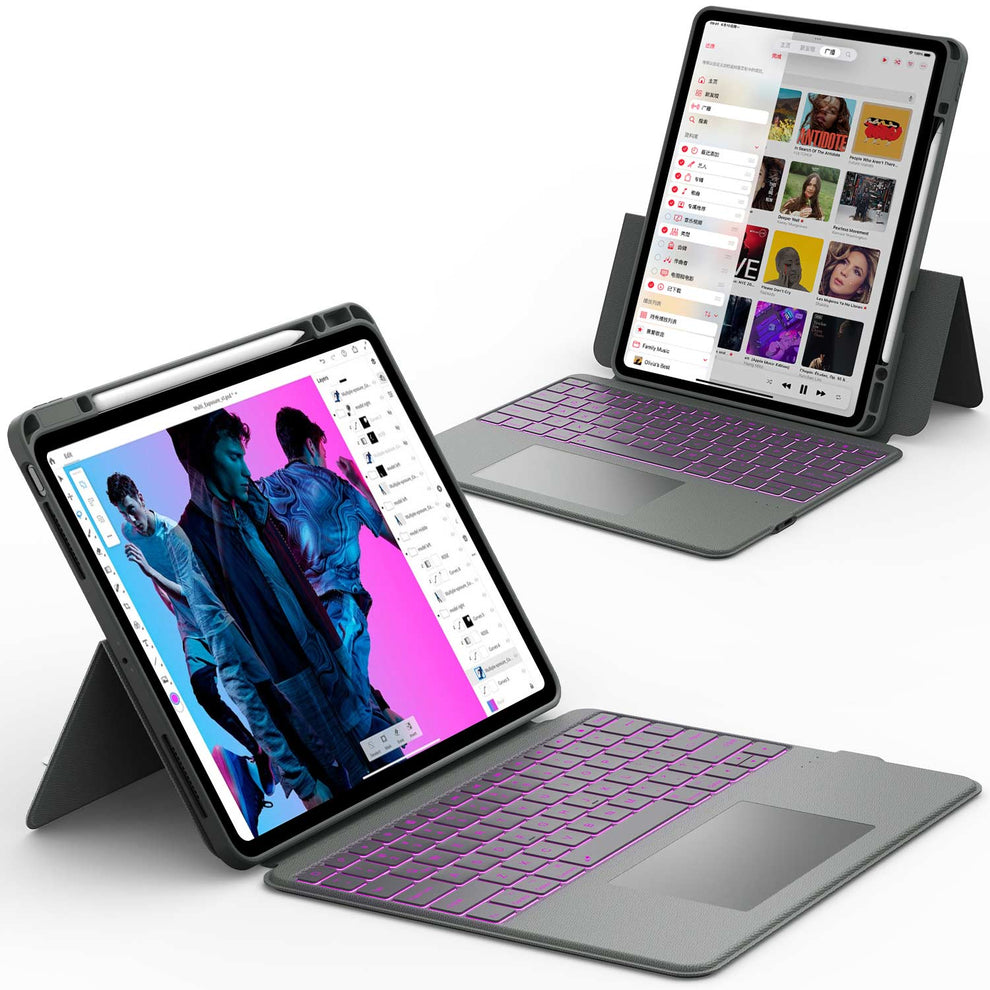


How to Connect a Wireless Keyboard to iPad or iPhone (Bluetooth)

Connecting a wireless keyboard to an iPad or iPhone is straightforward once you know where to tap.
Step 1: Turn on Bluetooth on your iPad or iPhone
- Open Settings
- Tap Bluetooth
- Make sure the toggle is turned on (green)
Keep this screen open. You will see available devices appear here.
Step 2: Turn On the Wireless Keyboard and Enter Pairing Mode
On most wireless keyboards:
- There is an On/Off switch on the side or the bottom
- Some have a dedicated Bluetooth button
- Others use a Fn + key combination to enter pairing mode
Common pairing actions:
- Slide the power switch to On.
- Hold the Bluetooth button until the light blinks.
- On multi-device boards, press Fn + 1 or a key labeled with a Bluetooth icon until the light near that key flashes.
A blinking light usually means the keyboard is discoverable and ready to pair.
Step 3: Select the Keyboard in Bluetooth Settings
Back on your iPad or iPhone:
- Under Other Devices, look for the keyboard name (for example, “CHESONA Keyboard” or “Wireless Keyboard”).
- Tap the name once.
- If a pairing code appears on the screen, type the code on the keyboard, then press Enter.
Within a few seconds, the status should change to Connected.
Step 4: Test the Keyboard
Open Notes, Mail, or any text field.
- Type a few words
- Try Backspace, arrow keys, and spacebar
- Confirm that everything responds instantly
If it works, you are connected and ready to type.
Bluetooth vs. 2.4G: Which Method Should You Use?
Most modern keyboards offer two ways to connect. Knowing the difference helps you choose the best method for your setup.
| Method | Best For | Pros | Cons |
|---|---|---|---|
| Bluetooth | iPads, Phones, Laptops | No dongle needed, connects to multiple devices | Slight latency for gaming |
| 2.4G (USB Dongle) | Desktop PCs, Windows | Instant connection, zero lag, works in BIOS | Requires a USB port, easy to lose dongle |
How to Connect a Wireless Keyboard to a Windows PC or Laptop

Many people use wireless keyboards with Windows computers for a cleaner, cable-free desk.
Connect a Bluetooth Wireless Keyboard to Windows
- Click the Start menu, then Settings
- Go to Devices or Bluetooth & devices
- Turn on Bluetooth if it is off
- Click Add device or Add Bluetooth or other device
- Choose Bluetooth from the list
Now put your keyboard in pairing mode:
- Turn it on
- Hold the Bluetooth or pair button until the light blinks
Back on the computer:
- Look for your keyboard name in the list of discovered devices
- Click it once
- If a PIN appears, type it on the keyboard and press Enter
You should see a message that says “Your device is ready to go.”
Connect a 2.4G Wireless Keyboard to Windows
This is usually the easiest method:
- Plug the small USB receiver into an open USB port on your PC or laptop
- Turn on the keyboard
- Wait a few seconds
Most 2.4G keyboards work immediately without extra drivers. If nothing happens, try another USB port and make sure the keyboard has power.
How to Connect a Wireless Keyboard to a Mac

Macs work well with both Bluetooth and 2.4G wireless keyboards.
Connect a Bluetooth Wireless Keyboard to a Mac
- Click the Apple menu in the top left
- Open System Settings (or System Preferences on older macOS)
- Click Bluetooth
- Make sure Bluetooth is turned on
Put your keyboard in pairing mode, then:
- Find the keyboard name in the Nearby Devices list
- Click Connect
- If a code appears, type it on the keyboard and press Enter
Once it is connected, you can use it to control your Mac.
Connect a 2.4G Wireless Keyboard to Mac
- Plug the USB receiver into a USB or USB C adapter on your Mac
- Turn on the keyboard
- Wait a few seconds
If it does not respond, unplug and replug the receiver and make sure the batteries or internal battery are charged.
How to Connect a Wireless Keyboard to Android Tablets and Phones
Bluetooth keyboards work well on Android too, especially for tablets used for school or work.
Step 1: Turn On Bluetooth
- Open Settings
- Tap Connected devices or Bluetooth
- Turn Bluetooth on
Step 2: Pair the Keyboard
- Put the keyboard in Bluetooth pairing mode (light blinking)
- On your Android device, tap Pair new device or Add device
- Tap the keyboard name when it shows up
- Confirm any pairing code
After pairing, test it by typing into any app.
Troubleshooting: Why Won't It Connect?
If the light is flashing but nothing is happening, try these fixes:
- Forget and Re-pair: Go to your device's Bluetooth settings, find the old connection (e.g., "Chesona Keyboard"), select "Forget This Device", and restart the pairing process.
- Check Power: Low batteries can cause radio instability. If the LED is red or dim, charge the device.
- Interference: USB 3.0 ports can sometimes interfere with 2.4G wireless dongles. Try using a USB 2.0 extension cable or a different port.
Recommended Wireless Keyboard and Mouse Combo

For a flexible, multi-device setup, a wireless keyboard and mouse combo with BT 5.0, BT 3.0, and 2.4G support is ideal:
- Connect to Mac, Windows, iPad, and Android
- Switch between up to three devices with dedicated keys
- Use 2.4G when you want no lag on a desktop and Bluetooth when you are on the go
- Rechargeable, so you do not burn through disposable batteries
This kind of combo fits almost any workspace and works especially well if you use an iPad case and Bluetooth keyboard setup as your main portable workstation.
Conclusion
Connecting a wireless keyboard should be the start of a more productive workflow, not a tech support headache. Whether you rely on the ubiquity of Bluetooth or the stability of a 2.4G dongle, ensuring your device is in the correct "Pairing Mode" is the key to success.
Final Thought: If you find yourself constantly unpairing and re-pairing devices, it's time to stop the struggle. Your tools should adapt to you, not the other way around.
Upgrade to a seamless workflow. Explore our Wireless Keyboard and Mouse Collection to find multi-device peripherals that let you rule your digital ecosystem with a single click.
FAQs About How to Connect a Wireless Keyboard
How do I put my Chesona keyboard in pairing mode?
Most Chesona keyboards use the Fn + C combination. Hold it down for 3 seconds until the blue light flashes. If you are using a Multi-Device model, hold down the specific Bluetooth channel key (e.g., BT1) for 3 seconds.
Can I connect a wireless keyboard to an iPad without Bluetooth?
Yes, but you will need an adapter. You can plug a 2.4G USB receiver into a USB-C to USB-A adapter (hub). However, Bluetooth is generally smoother for iPadOS. If you want a dedicated solution, check our iPad case and Bluetooth keyboard collection.
Why is my keyboard typing wrong characters?
This happens if the keyboard is set to the wrong operating system layout.
- Press Fn + Q for Android.
- Press Fn + W for Windows.
- Press Fn + E for iOS/Mac.
Does a wireless keyboard drain an iPad battery?
The drain is negligible. Modern Bluetooth 5.0 technology is extremely energy efficient. However, using a backlit keyboard at full brightness will drain the keyboard's battery faster. Check out our wireless keyboard for iPad Pro for models with optimized battery life.


