


Finding your Wi-Fi MAC address on an iPad is simple once you know where to look. You need this code to connect to a secure school or office Wi-Fi, troubleshoot network issues, or register your device on a router.
This guide walks you through every step so you can quickly and confidently find your Wi-Fi MAC address on an iPad.
The process works for all iPad models and iPadOS versions. You will also learn how private addresses work, why your MAC address may look different, and how to fix common problems.
Quick Takeaways:
- Your Wi-Fi MAC address is a unique code that identifies your iPad on a network.
- The fastest way to find it is through Settings > General > About > Wi-Fi Address.
- Your iPad can show a different MAC address on each network because of the Private Wi-Fi Address feature.
- You may need your MAC address for school, office, router access, or network troubleshooting.
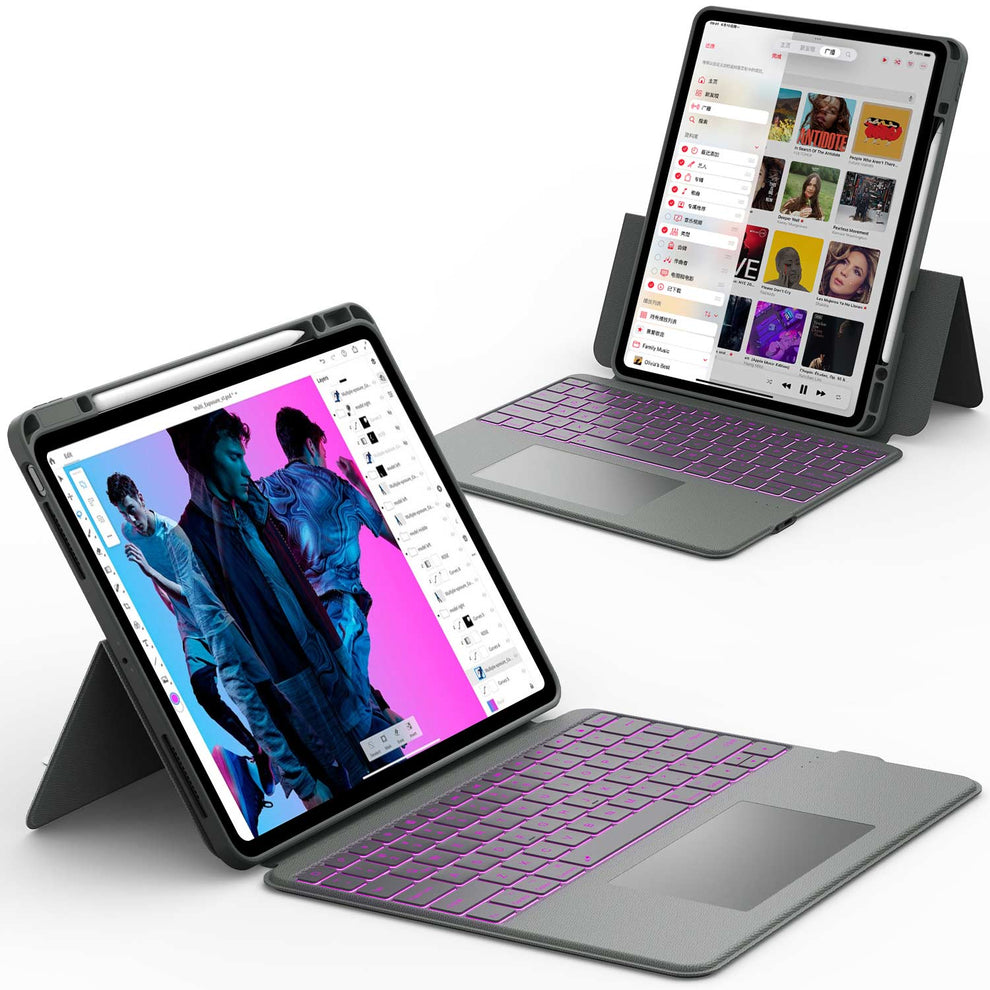
iPad Keyboard Cases You May Want to Shop
Explore More

What Is a Wi-Fi MAC Address on an iPad and Why Does It Matter
A Wi-Fi MAC address is a unique set of numbers and letters that belongs to your iPad’s wireless chip. This code helps networks identify your device. It is not the same as your IP address. Your IP address can change, but your MAC address is tied to the hardware.
Many schools, offices, and routers use MAC addresses to control who can join the network. Some networks also block unknown devices until you register your MAC address. If you ever wonder why your iPad cannot connect while other devices can, it may be because the network needs your MAC address first.
A MAC address also helps with troubleshooting. When you reach out to an IT team, they often ask for your MAC address to track your connection, reset your profile, or lift a restriction. Knowing where to find it saves you time and avoids delays.
How the MAC Address Helps With Network Security
A MAC address is one of the simplest ways for a network to recognize your device. It gives the router a way to approve or reject access. In places with heavy security, like offices and schools, administrators add your MAC address to an approved list.
Once your MAC is on the list, your device can join the network without problems. If it is not, the network blocks it. This prevents unknown devices from accessing private systems.
When You Need to Know Your MAC Address
Here are the most common situations where someone may ask for your iPad’s Wi-Fi MAC address:
- School Wi-Fi registration
- Office network setup
- Router MAC filtering
- Guest network approval
- Device tracking during troubleshooting
- Fixing inconsistent Wi-Fi connection
- Setting up parental controls
Knowing where to find this information makes these processes simple.
👉 Also Read: How to Find My iPad: Quick Steps to Locate Your Device
How to Find Your Wi-Fi MAC Address on an iPad

Finding your iPad’s MAC address is very simple. Apple keeps this information in the About section of your settings. The instructions below work for all iPad models, including iPad, iPad Air, iPad mini, and iPad Pro.
Step 1. Open Settings and Go to General
Start by tapping the Settings icon. This takes you to your main settings menu. Tap General. This section contains information about your device hardware and software.
Step 2. Tap About and Look for Wi-Fi Address
At the top of the General menu, tap About. This page includes your serial number, model number, software version, and network details. Scroll until you see Wi-Fi Address.
The Wi-Fi Address line shows your MAC address. It usually looks like this:
A1:B2:C3:D4:E5:F6
This is the code you need.
Step 3. Confirm the Correct Format
A MAC address always follows the same pattern:
- Twelve characters
- Numbers and letters
- Separated into six pairs
-
Each pair is separated by colons
If your code does not match this pattern, restart your iPad and check again. Sometimes software updates can temporarily cause display glitches.
👉 Also Read: How to Print from iPad: The Easy Guide to Wireless Printing
What to Do if Your iPad Shows the Wrong MAC Address
Sometimes the MAC address displayed is not what your administrator expects. This can happen because of the Private Address feature or a temporary software issue. Here are ways to fix it.
Restart and Reconnect
A simple restart resets the network interface. After restarting, go back to Settings and check the MAC again.
Reset Network Settings
This fix is helpful when the iPad keeps showing the wrong MAC or refuses to connect to Wi-Fi. It clears saved networks and network data but does not delete your apps or files.
Steps:
- Go to Settings
- Tap General
- Tap Transfer or Reset iPad
- Tap Reset
-
Select Reset Network Settings
After the reset, reconnect to your network and check the MAC address again.
Turn Off Private Wi-Fi Address Temporarily
If a network requires your real MAC and your iPad is showing a random one, turn off Private Address. This solves most access issues.
👉 Also Read: How to Sync iPhone and iPad in the Easiest Way
Other Ways to Find Your iPad MAC Address
Sometimes you cannot access your screen or your device is not turning on. You can still find your MAC address using other methods.
Check Through Your Router
Most routers list all connected devices. If your iPad joined the network before, the router may show its MAC address.
Go to your router’s device list or DHCP client list and look for the iPad name.
Check Apple ID Device List
If you have another Apple device, you may see the MAC address in the system information or device details.
Use Apple Configurator for Managed iPads
IT administrators can use Apple Configurator to view hardware details, including MAC addresses. This is common for school and corporate iPads.
👉 Also Read: Unable to Activate iPad? Try These Easy Fixes
How to Protect Your Privacy When Sharing Your MAC Address
Your MAC address is not a secret, but you still need to be careful. While it will not give someone full access to your device, sharing it with random people is not recommended.
Only Share With Trusted Networks
Share it only when requested by:
- IT support
- School network teams
- Office administrators
- Home network administrators
Use Private Wi-Fi on Public Networks
If you join many public networks, always leave Private Address enabled. It protects your location and prevents long term tracking.
Conclusion
Finding your Wi-Fi MAC address on your iPad is simple once you know where to look. Whether you need it for school, work, troubleshooting, or network registration, the Settings app gives you quick access to both your device’s hardware MAC and your network-specific MAC.
Understanding how Private Wi-Fi Address works also helps you avoid connection issues and keeps your privacy protected on public networks. With the steps in this guide, you can manage your iPad’s network identity with confidence.
If you want to protect your device and upgrade your setup, check out our iPad case collections below.
FAQs About How to Find the MAC Address on an iPad
What is a MAC address on an iPad?
A MAC address is a unique code that identifies your iPad on a Wi-Fi network. It helps routers, school networks, and managed systems recognize your device. This code stays the same unless you turn on the Private Wi-Fi Address feature. It is an important part of how your iPad connects safely and correctly to wireless networks.
Where do I find my iPad’s Wi-Fi MAC address?
You can find it in the iPad’s settings. Go to Settings, tap General, tap About, and look for the line labeled Wi-Fi Address. This line shows six pairs of numbers and letters, which is your MAC address. Make sure to copy it exactly if your network requires it.
Wi-Fi address and MAC address the same on iPad?
Yes. On an iPad, the Wi-Fi address and MAC address refer to the same code. Apple uses the term Wi-Fi Address in the settings, but it functions as your device’s MAC address. Both describe the unique hardware ID your iPad uses to connect to wireless networks.
Is the Wi-Fi MAC address the same as the IP address?
No. A Wi-Fi MAC address is a permanent hardware ID, while an IP address is assigned by your router or network. The MAC address helps identify your device, and the IP address helps with online communication. Your IP address can change often, but your MAC address stays the same unless you use a private address feature.
