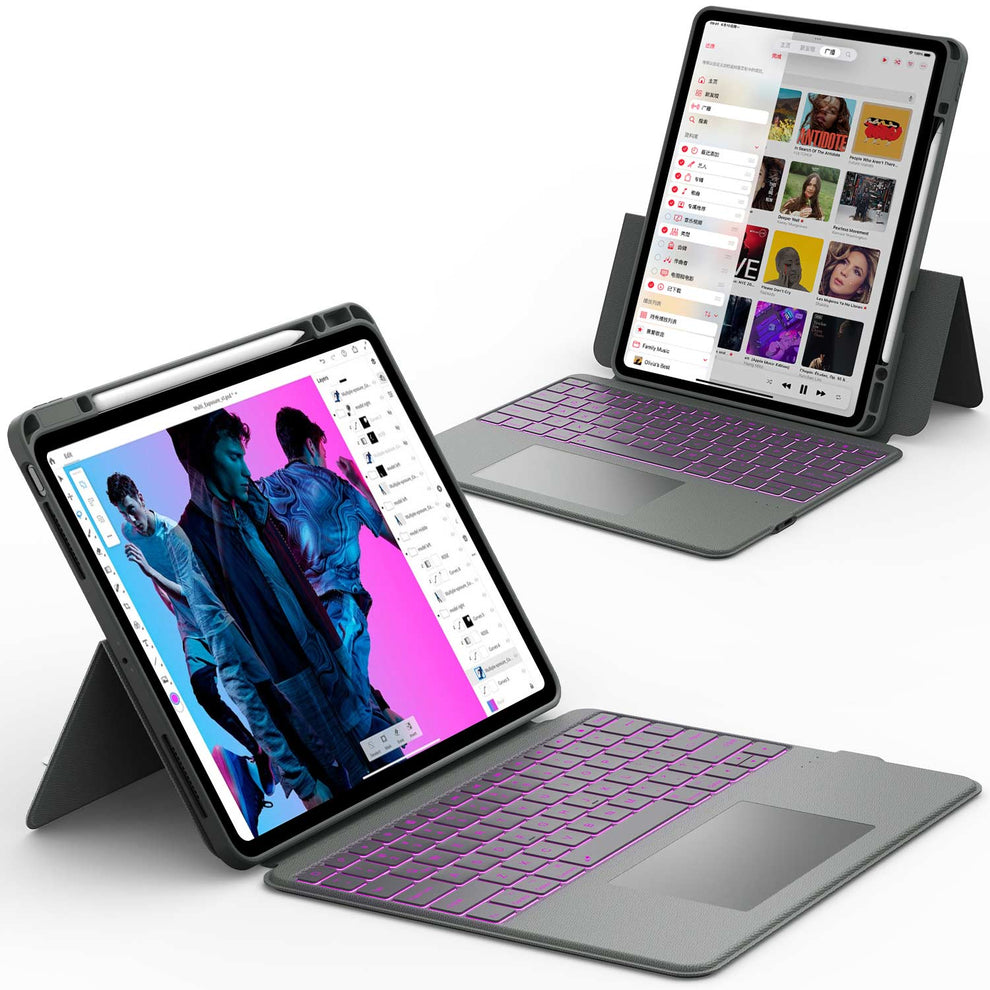
You plug a USB drive into your iPad and nothing shows up. No files. No pop-up. Just confusion. The truth is, your iPad can work with USB drives, keyboards, SD cards, and even SSDs. You just need the right setup and know where to look.
In this guide, you will learn how to access USB on iPad using cables, adapters, and a keyboard case with built-in USB ports and SSD storage. By the end, your iPad will feel much closer to a real laptop.
■ What To Know
- Check your iPad port type
- Use a USB-C or Lightning adapter or hub
- Plug the USB drive into the adapter or Chesona keyboard case with docking hub
- Open the Files app and tap Browse to see your drive
- Look under Locations for the USB drive name
- Format drives as exFAT for best compatibility
- Use a powered hub for big drives and accessories
- For the easiest setup, use a Chesona keyboard case with built in SSD and USB ports
Understand What Type of USB Your iPad Supports

Before you plug anything in, you need to know which port your iPad has. This decides which adapters and hubs will work.
Check if Your iPad Has USB-C or Lightning
Do this first:
- Look at the charging port on the bottom edge of your iPad
- If the port is small and oval-shaped, it is USB-C
- If the port is narrow and longer with pins inside, it is Lightning
In simple terms:
Knowing this helps you choose the right adapter or keyboard case that provides USB access.
Use the Right Adapter or Hub for Your iPad
Once you know your port type:
-
For USB-C iPads
- You can plug a USB-C hub directly into the iPad
- Many hubs include USB-A, USB-C, HDMI, and card readers
-
For Lightning iPads
- You need a Lightning to USB adapter that supports power and data
- The official Lightning to USB 3 Camera Adapter is the most reliable
If you are not sure which iPad you have, you can also check Settings > General > About and note the model.
Use the Files App to Access USB Drives on iPad
Once your USB drive is physically connected, your iPad will not show a desktop like a computer. Instead, everything runs through the Files app.
Open the Files App and Find the Browse Tab
Follow these steps:
- Tap the Files app on your home screen
- If it opens to Recents, tap Browse at the bottom
- Look at the left sidebar under Locations
If your USB device is recognized, you will see something like:
- USB Drive
- Untitled
- The brand name of your drive
Tap that name to view the contents.
Read and Copy Files From USB Drive
Once you see your USB drive:
- Tap any folder to open it
- Tap a file to open it in a compatible app
-
To copy files to your iPad
- Tap and hold on a file
- Tap Copy
- Navigate to On My iPad or iCloud Drive
- Tap and hold and choose Paste
You can also drag and drop files inside the Files app when using split view.
Safely Remove the USB Drive From Your iPad
iPad is more forgiving than a computer, but it is still good practice to close files before unplugging.
- Make sure you are not editing a file directly from the USB drive
- Quit any app that is using a file on the drive
- Gently unplug the USB cable or hub
Most of the time, this is enough to avoid data corruption.
Connect USB Accessories With a Chesona Keyboard Case
If you use USB devices often, reaching for separate adapters gets annoying. A better option is a keyboard case that already includes USB ports and even built in SSD storage.
Use a Chesona Keyboard Case With Built In USB Ports

Some Chesona iPad keyboard cases act like a full hub, so your iPad becomes more like a laptop. They typically include:
- Type C port
- USB 3.0 port
- SD and TF card slots
- HDMI output
Once connected:
- Attach your iPad to the Chesona keyboard case
- Plug your USB drive, camera, or other device into the keyboard hub
- Open the Files app
- Your drive should appear in the Locations list, just like before
This means you can:
- Plug in flash drives
- Offload photos from cameras
- Connect USB mics or other accessories
- All while using a full keyboard and trackpad
Recommended Chesona Keyboard Case With Storage and Ports
If you want to get serious about USB storage and external displays, look for a Chesona keyboard case that offers:

CHESONA ArmorDock Series Keyboard Case for iPad Pro with SSD
- All-in-One Storage Expansion: Built-in M.2 SSD slot (supports 2230-2280 up to 2TB) turns your iPad into secure personal cloud storage. Save photos, videos, and work files without relying on the internet.
- 4K Studio-Grade Output: Enjoy smooth 4K@60Hz output to any monitor or TV. Ideal for dual-screen work, presentations, and streaming, even while running files directly from the SSD.
- High-Speed Connectivity Hub: Type-C, USB 3.0, and SD/TF card slots make file transfers fast and easy. Connect cameras, external drives, and memory cards in seconds.
- 7-Color Backlit Keyboard: Comfortable, responsive keys with adjustable 7-color backlighting. Perfect for late-night work and low-light environments.
- Precision Multi-Touch Trackpad: Laptop-style trackpad with full gesture support for smooth scrolling, swiping, zooming, and app switching. Your iPad, upgraded to a true workstation.
With a case like this, accessing USB on iPad becomes as simple as connecting the device to the keyboard hub and opening the Files app.
Access USB Storage on iPad With the Right File Format
Not every USB drive will work perfectly the first time. The file system format matters.
Use exFAT or FAT32 for Best Compatibility
Most iPads work best with:
- exFAT
- FAT32
These formats let you:
- Read and write files
- Store large files (over 4 GB with exFAT)
If your drive is NTFS or another format, the iPad might show it as read only or not at all.
Reformat a USB Drive on a Computer if Needed
If your iPad does not recognize the drive:
- Plug the drive into a Windows or Mac computer
- Back up any important data
- Format it as exFAT or FAT32
- Safely eject it
- Plug it back into your iPad or Chesona hub
Then check the Files app again.
Power USB Devices Properly So iPad Can See Them
Large drives and some accessories need more power than your iPad can provide through its port.
Use a Powered USB Hub for High Power Devices
If you are trying to connect:
- Big external hard drives
- Old spinning HDDs
- Some audio interfaces
You might need a hub with its own power adapter.
Steps:
- Plug the hub into a wall outlet
- Connect the hub to your iPad or Chesona keyboard hub
- Then plug the external drive into the hub
This supplies enough power so the iPad can read the drive.
Keep iPad Charged While Using USB Accessories
When you connect multiple devices, your iPad battery drains faster. To manage this:
- Use a hub or keyboard case that includes a pass-through charging port
- Plug your iPad charger into the hub or keyboard case
- Work while your iPad and connected devices stay powered
This is where an iPad case with USB ports and a proper hub design really helps. You can plug into a monitor, an SSD, and a USB drive while still charging the iPad.
Fix Common Problems When a USB Does Not Show Up on an iPad
Sometimes you do everything right and still see nothing in the Files app. Here is what to check.
Step 1: Check the Cable and Adapter
Do this first:
- Try a different USB cable
- Try another port on the hub
- Make sure the adapter supports both power and data
Cheap or old cables can charge but not transfer data. Use known good cables if possible.
Step 2: Check the Drive on a Computer
Plug the USB drive into a computer:
- If it does not show up there either, the drive is likely bad
- If it works on a computer but not on iPad, check the file format or power needs
Step 3: Restart Your iPad
Simple but effective:
- Turn off your iPad
- Wait 10 seconds
- Turn it back on
- Reconnect the USB drive
After a restart, open Files again and check Browse > Locations.
Step 4: Update Your iPad
Old software can cause strange USB behavior. Make sure you are running the latest iPadOS.
- Go to Settings > General > Software Update
- Install any available updates
- After updating, reconnect the drive
If you want more guidance, a detailed “how to update iPad” walkthrough can help you make sure every step is done safely.
Conclusion
Managing storage on an iPad doesn't have to be a headache. While Apple doesn't give us a single "Empty Trash" button, knowing where to look in Photos, Files, Mail, and Notes puts you back in control of your device.
By regularly checking these "Recently Deleted" folders, you ensure your iPad remains fast, responsive, and ready for whatever you need to download next.
Final Thought: Your iPad is a powerful tool, but it is only as good as its available space. Don't let digital clutter slow you down.
FAQs About How to Access a USB on an iPad
Can I plug a normal USB thumb drive directly into my iPad?
If your iPad has a USB-C port, you still need a USB-C to USB-A adapter or a USB-C hub that includes a USB-A port. If your iPad has a Lightning port, you need a Lightning to USB adapter. There is no full-size USB-A port built into any iPad.
Can I move apps onto a USB drive from my iPad?
No. iPadOS does not support installing apps on external drives. You can store files, videos, photos, and project folders on USB or SSD, but apps still live on the internal iPad storage.
Will my iPad get slower if I use external USB storage?
No. In fact, using external storage can help. When you move large video projects or photo archives off the internal storage and onto an SSD or USB drive, your iPad gets more free space, which often makes it feel faster and more responsive.
Will a Chesona keyboard case with SSD replace iCloud?
It does not replace iCloud, but it can reduce your need for cloud storage. With a built in SSD up to 2 TB, you can store huge libraries of photos and videos locally and keep them private. You still might use iCloud for sync and basic backups, but you are not forced to pay for very large iCloud plans.
Can I use external USB storage for backups?
You can manually copy important data to a USB drive, but it does not work like Time Machine on Mac. Think of it more like dragging and dropping copies of files you want to back up. For full device backups, iCloud or computer based backups are still better.